You can do this if you’re comfortable editing the JSON file that contains key commands.
This file is called keycommands_en.json (where en is the abbreviation for whatever language you have Dorico set to), and it’s located in c:\Users\<username>\AppData\Roaming\Steinberg\Dorico 5 on Windows and ~/Library/Application Support/Steinberg/Dorico 5 on Mac.
Because the current state of this file can differ depending on what key commands you already have set up, I suggest using Dorico to add a key command for a similar command – in this case, something in the Note Editing section – and then altering the command in the file to call your script instead.
For example, let’s say you want to use Ctrl+H for this harmonic script. Go into Edit > Preferences > Key Commands and add Ctrl+H as a shortcut for “Propagate Note Spellings” (or something else in Note Editing that you don’t use). Then close Dorico.
Open up the JSON file in a text editor – note: not a word processor, like MS Word, but something like Notepad on Windows – and search for the command you just added.
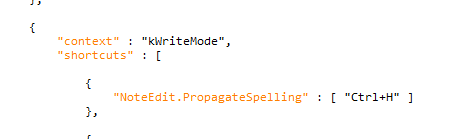
Replace NoteEdit.PropagateSpelling with Script.RunScript?ScriptPath=C:/path/to/myscript.lua. (Use the actual path to your lua file, and use forward slashes even on Windows.)

Save and close the file. The shortcut should work for you the next time you start Dorico.