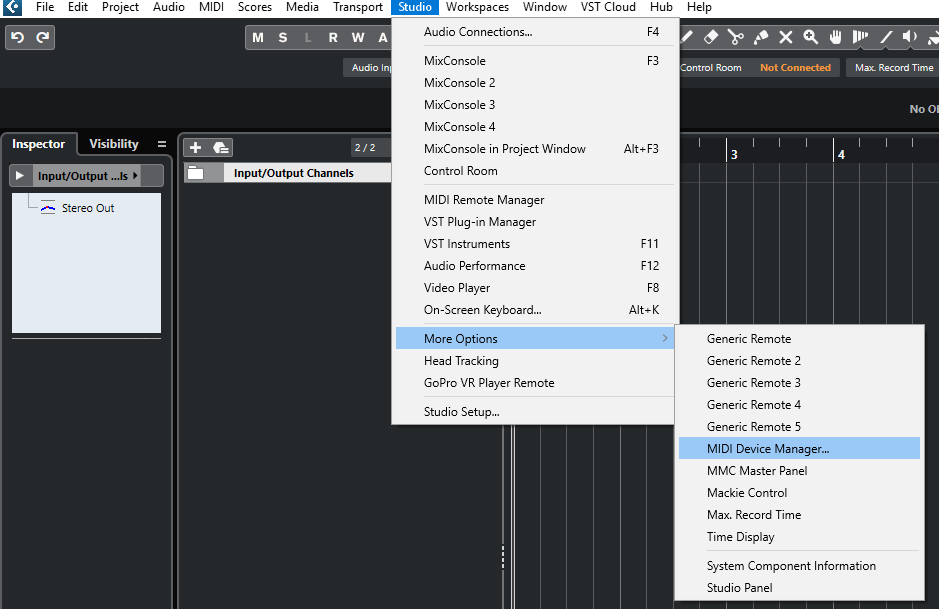
Top main Cubase window:
Studio/More Options/MIDI Device Manager
Click the Install Device button.
Scroll until you find the Profile you wish to install and double click it (or select and click OK).
While you’re at it you might also want to install a GM Device, as the SC-55 also has a General MIDI mode.
Once you’ve added device(s) to your profile, you can click them in the left column and establish the output device or MIDI port that your Sound Canvas is connected. I don’t have an SC, but to demonstrate some things I’ll point it at my Roland Fantom XR).

Once I’m done here I’ll close the MIDI Device Manager dialogue.
Connect some audio outputs from your Sound Canvas to some inputs on your Audio Interface…In my case I have my Fantom plugged in to audio inputs 9 and 10 on my interface.
So, I’ll establish some ‘audio connections’ in Cubase for the device.
Tap F4, select the External Instruments tab
Add an External Instrument and name it what you like..
Establish the audio inputs…
Note that it’s possible to also associate a MIDI device from there, I usually leave that set to “No Link”, as it gives me a bit of extra flexibility in mixing/matching different Instrument profiles for the same outboard gear.

Now you can pull this instrument’s audio inputs into the Instrument Rack.
I recommend setting up a piece of hardware kit like this as a ‘rack’ instrument (as opposed to ‘track’ instrument).
You’ll find it listed under Steinberg/External Plug-ins.

When you first load it into the rack, you’ll get the option to create a MIDI track to go with it. You can make new MIDI tracks to go with the instrument any time you like…you’ll direct the MIDI output of tracks to MIDI devices in the inspector panel.

Notice you also have a new Instrument input on your Mixing Console.

And you can search/select Instruments from the patch-list with the ‘programs’ track dropdown.

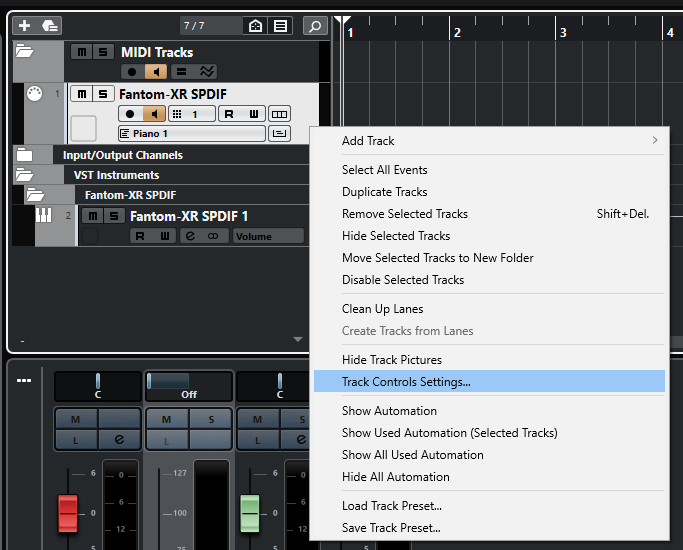
If you don’t see the Program control in your MIDI track Controls settings, you can add it by right clicking a MIDI track in the project editor and choosing: Track Controls Settings…
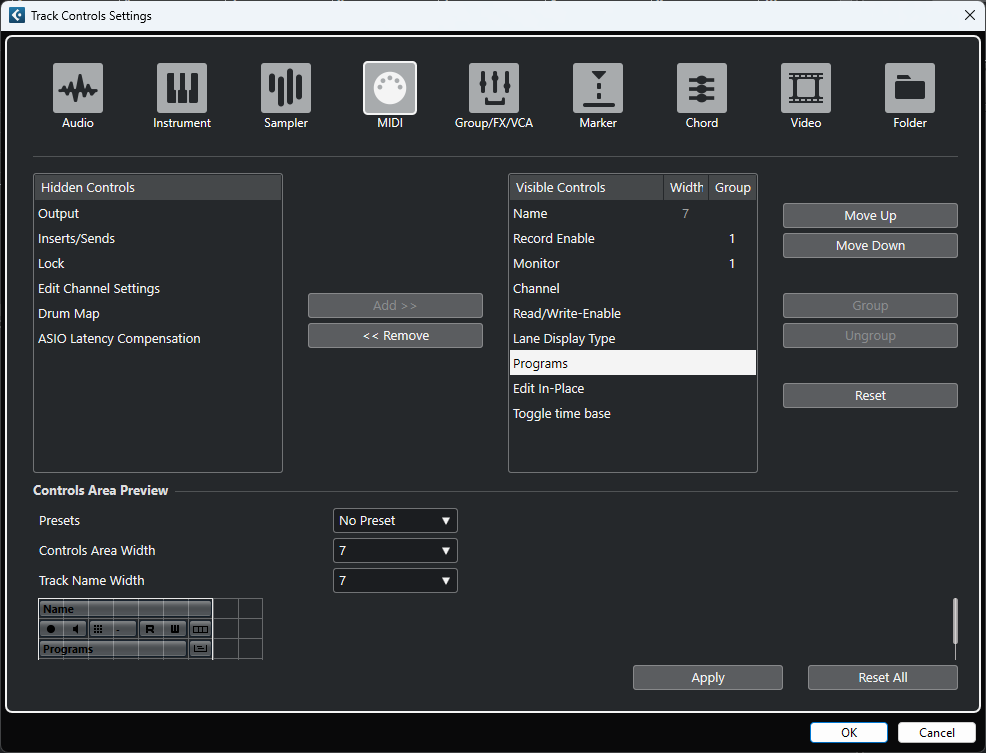
If you wish to make edits to the patch list, create device panels, etc…
Go back to Studio/More Options/MIDI Device Manager
Select the device you wish to edit in the left column and click “Open device”
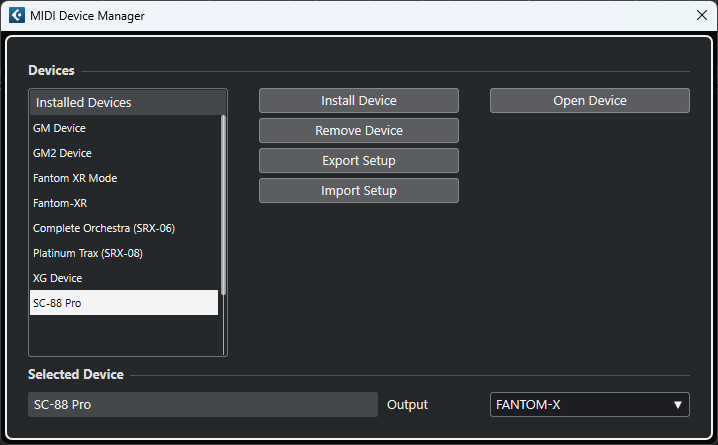
You’ll get the Device editor. In this SC-88pro profile, it’s simple to get it to display the Patch lists where you can see and edit them as required.
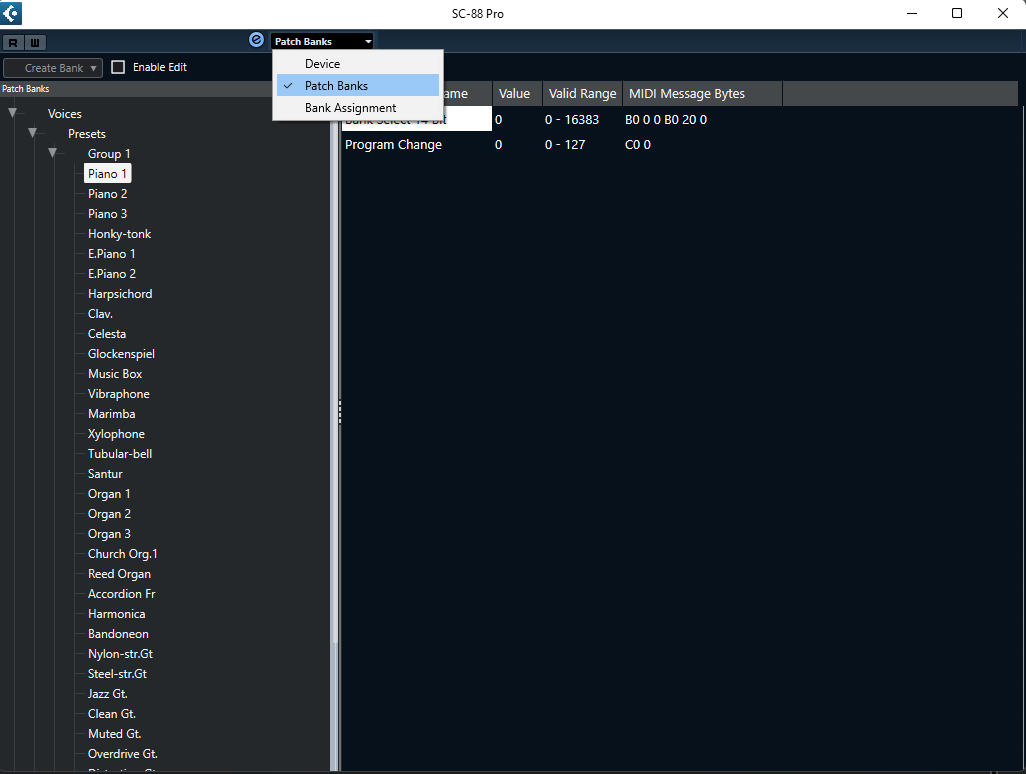
This “Midi Device” portion of Cubase is a bit of a legacy feature but it’s still present and working up through Cubase 14. It has a special manual of its own:
MIDI Devices
Don’t forget…if you make changes to anything it’s a good idea to export a copy of your Devices profile. Cubase will export an XML that has all of your MIDI device profiles combined into one single file; hence, your setup can be ‘imported’ into Cubase running on any other system (or reloaded in the event you might ever need to start all over, with cleared Cubase preferences and all on this one).