Hi,
If you are a Facebook user, I did a pretty extensive thread last month on rendering and metadata in the Facebook group. I can’t remember if they were two separate posts but if you search the WaveLab Users Group (Unofficial) on Facebook, you will find it:
99% of the time, there is really no need to use a 3rd party metadata app if you have WaveLab. I have a metadata app that I use to double check and troubleshoot things now and then, or for unique cases where it’s just faster/easier to enter in metadata in more of a spreadsheet type view but again, this is rare. The one big caveat is that with my method, using special characters in metadata is a little complex. This is because I populate metadata from CD-Text and CD-Text is restricted to ISO-8859-1 characters. For the type of work I usually do, this is fine. If I have to do metadata work that involves a lot of special characters, I find it faster to just use a 3rd party app and keep WaveLab restricted to ASCII so that CD-Text and file names do not have a problem. This is because my file names are also generated from marker names, plus the numeric prefix.
Anyway, to answer your questions:
- I don’t know anything about batch renaming because I just get it right from the start
 To get it right from the start, in the Render Tab, look for the “Naming Scheme” preset menu. In the Factory Presets, there is a “Numeric Prefix” option:
Dropbox - Numeric Prefix.png - Simplify your life
As you can see here, I have made a bunch of others too:
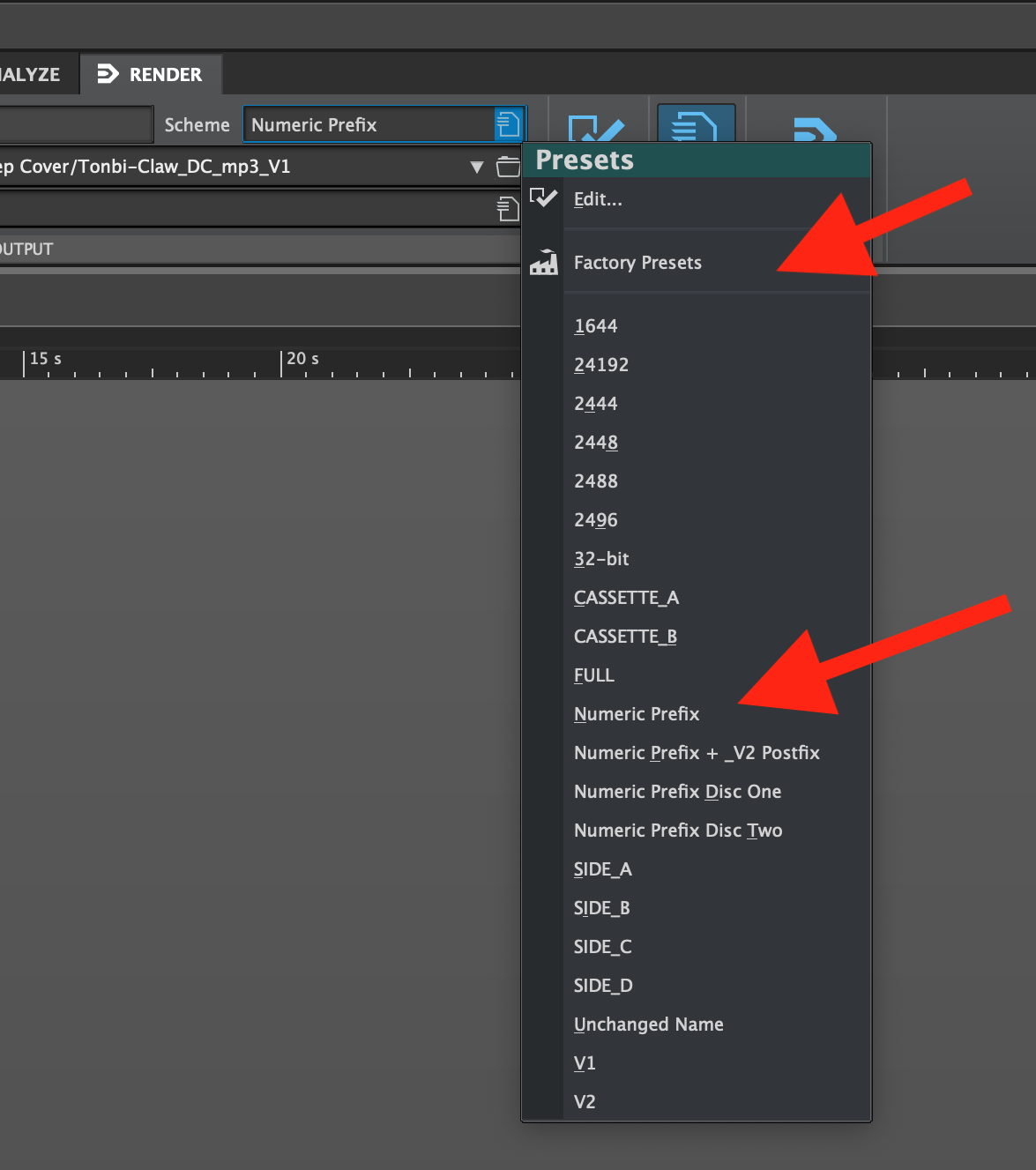
The point is, with “Numeric Prefix” chosen, each rendered file gets 01, 02, 03, etc. added to the start of each file. This allows you to keep the marker names, and CD-Text fields free of these ugly numbers, but the file names themselves will get the numbers so they stay in order in a folder etc.
WaveLab knows the track number so there is nothing extra to do besides select “Numeric Prefix” in the Naming Scheme area before rendering.
In addition, Naming Schemes can be saved as part of a larger Render Preset which is VERY helpful to get the render settings you want set very quickly. See here for some ideas:
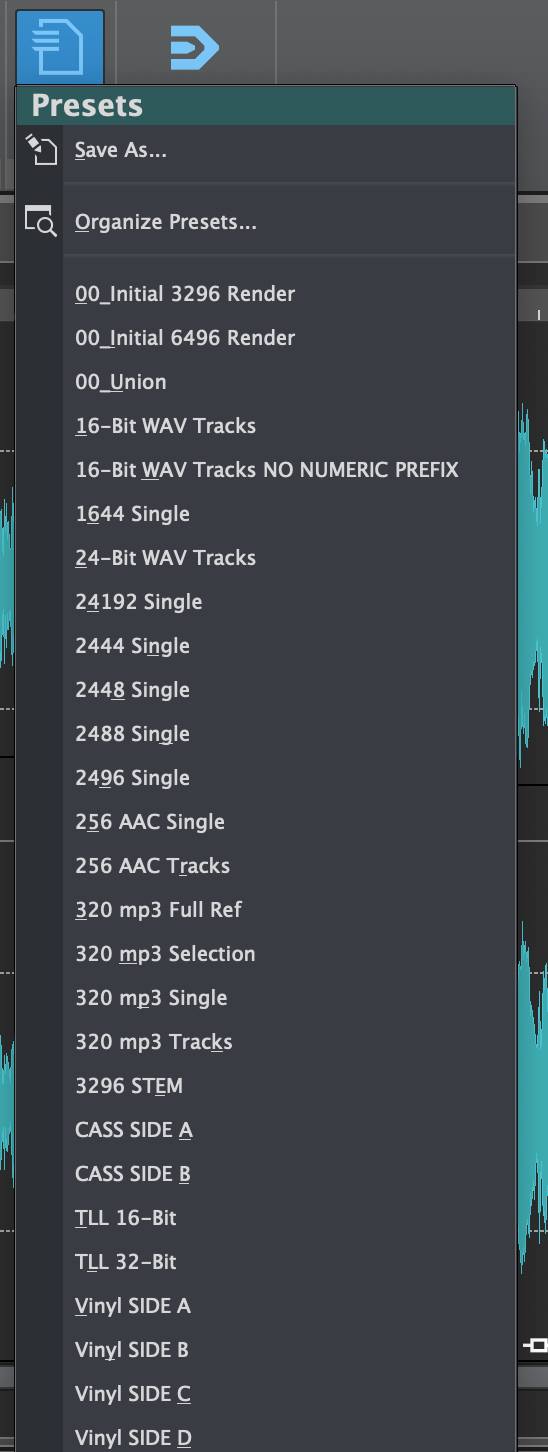
- Here are the CD Wizard settings I use:
Dropbox - CD Wizard.png - Simplify your life
This names the markers based on each clip name. With my normal workflow, the clips are perfectly named as each song title already. No extra characters. Just the song name, and only the song name. This is because after I capture it from my analog chain and trim/clean things up, I give the new file a perfect name. So, my markers are therefore perfectly named already. This comes in handy later.
If I’m working “in the box”, then my clips are not perfectly named. I keep the file and clip names just as I received them so it’s easy to keep track of the source names etc. for reference. In these cases, after running the CD Wizard, I simply rename each red marker to be exactly each song name. Nothing else, just the song name. It’s quick to do if you have a song list to copy and paste from.
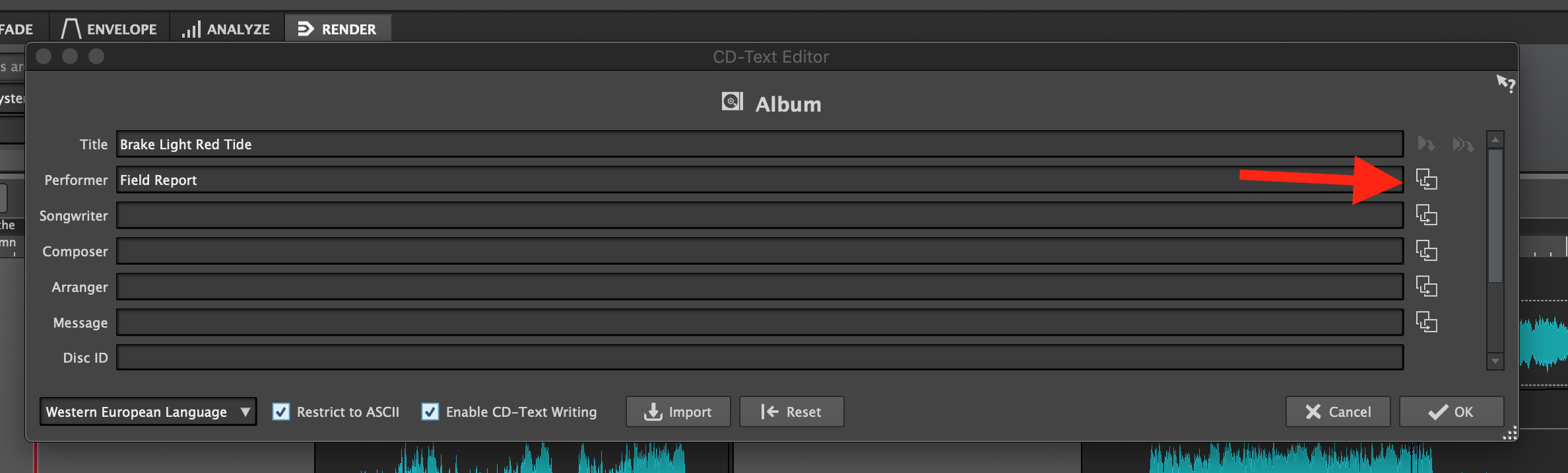
When you do this, it allows you to very quickly push the marker names to the CD-Text names. To do this, call up the CD-Text Editor box (found in the CD Tab). First, paste in (or manually enter) the album/project title and artist/performer name. You can then push the artist/performer name to all the rest of the songs by pressing the button shown here with the red arrow by it:
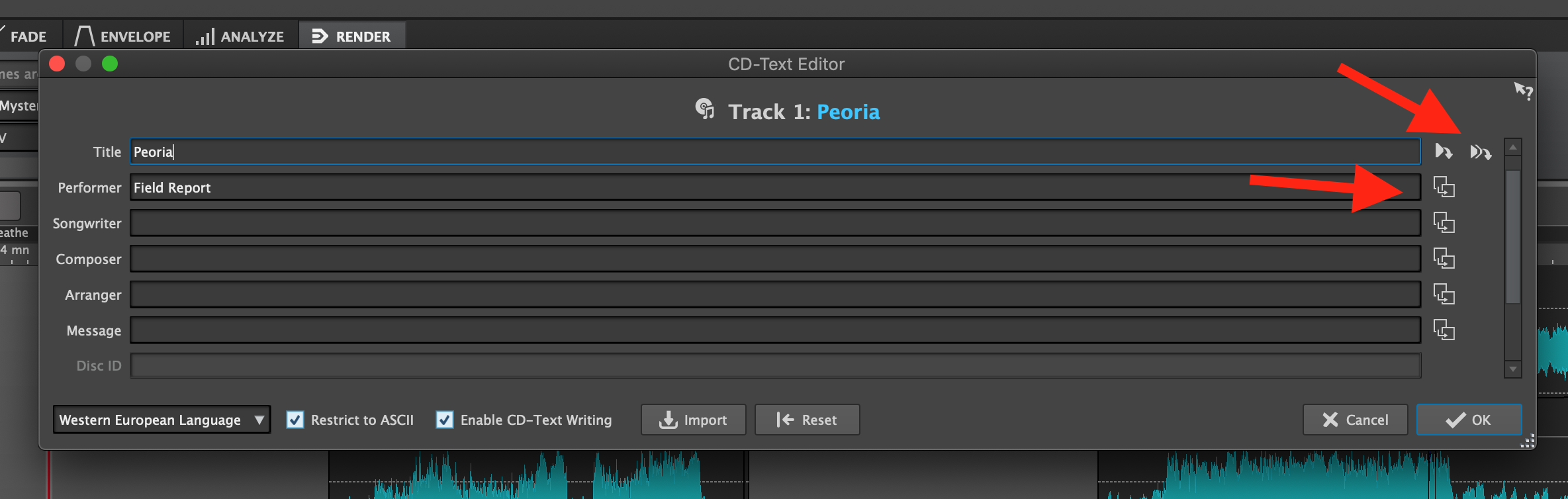
Then, use the scroll bar (or shortcut) to move to Track 1. When you move to track 1, look for the button in the top right corner that pushes the marker names to ALL CD-Text track names in one click:
Now you have perfect CD-Text which can then be auto-populated to metadata with the right metadata preset. For that, I don’t have time to explain right now but it’s in the Facebook group, and if you save the loaded metadata preset as part of your new montage template, you never have to open this area or think about it, other than to quickly add the project specific artwork. The rest is automatically just ready to go.
The key is getting the marker names correct, from there, the CD-Text is populated in just a few clicks and the metadata is auto-populated from my metadata preset.
Again, the only time I need a 3rd party app is for very special cases.
Side note, if you see a ? appear in the CD-Text Editor box, it’s because you have an invalid character. Sometimes copying and pasting text from another document will produce invalid apostrophe versions, and other special characters will be invalid if Restrict to ASCII is chosen. In the case of a bad apostrophe, simply delete it and type a fresh one.
If anything could be improved with WaveLab, it would be to find a way around easier use of special characters for metadata but keeping them out of the CD-Text which has a more restricted character set but for my workflow, it hasn’t been a big concern.


