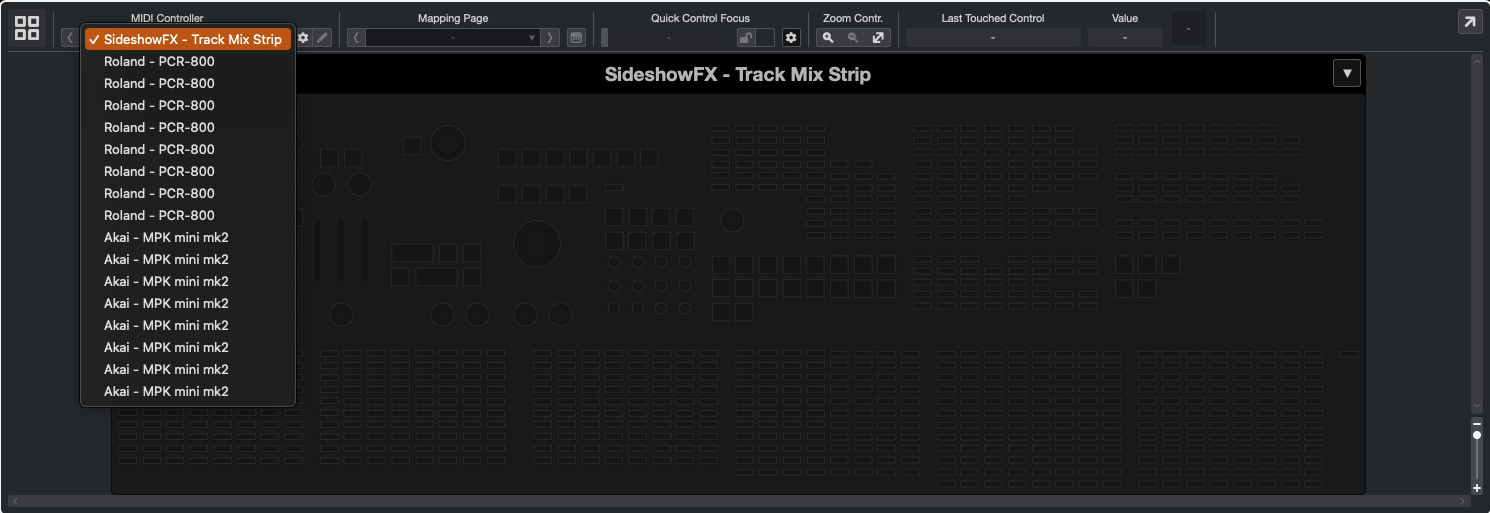
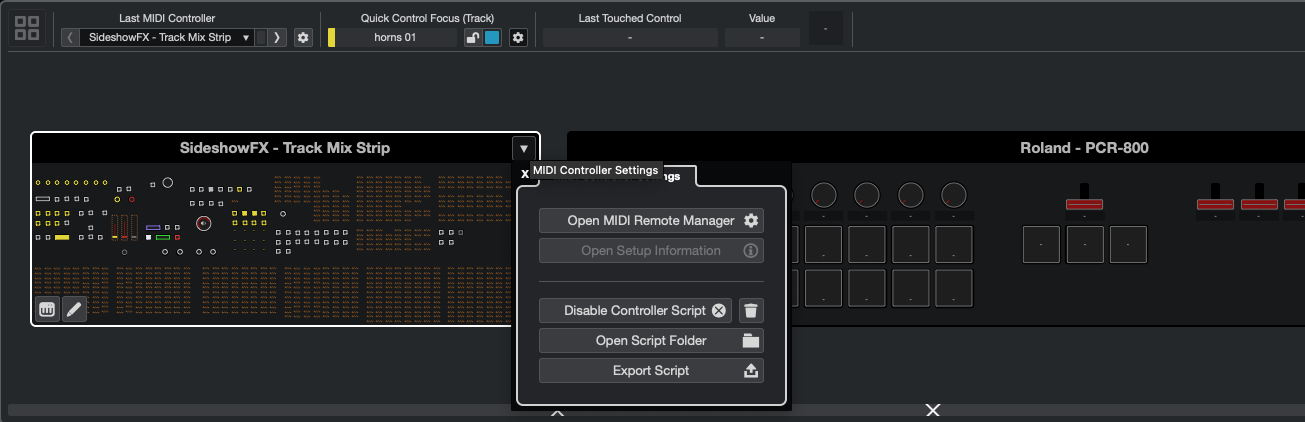
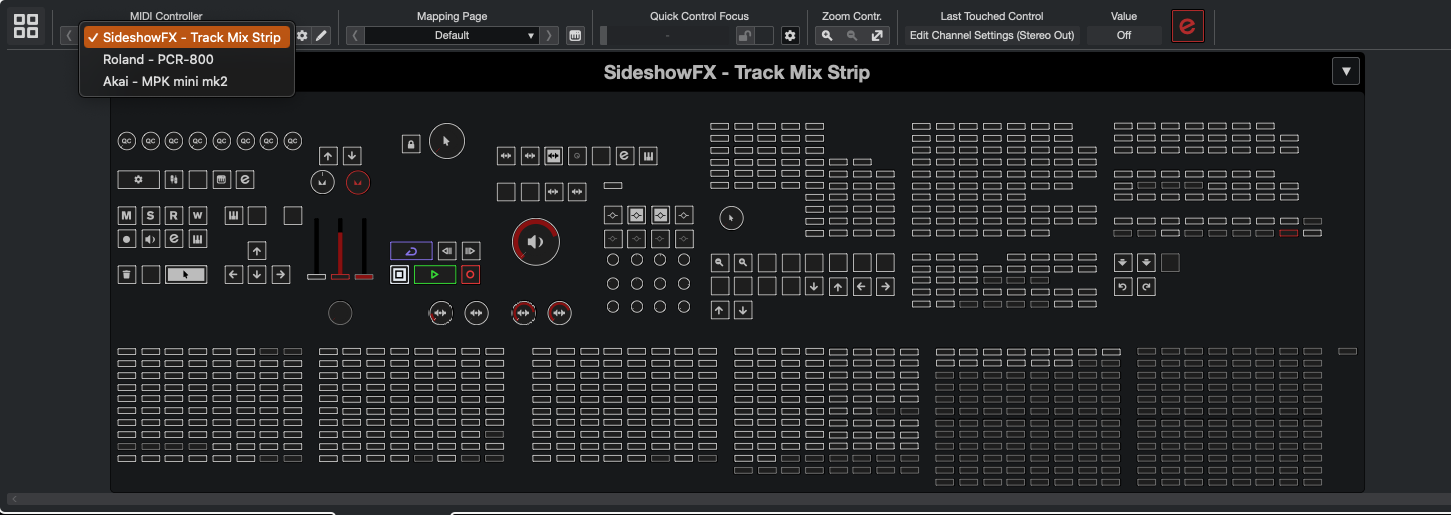
I don’t know why they appear, but if you click on that down-arrow and “Disable Controller Script” for each affected controller-type then re-enable them again in the Midi Remote Manager, the duplicates should disappear.
It’s not that simple. I was able to restart Cubase multiple times without seeing the issue. After a bunch of opening, closing, creating, and saving projects–I broke my MIDI remotes config again, but I made some helpful observations:
If you save a project or template while there are duplicate MIDI remotes, they will be there next time the project is opened.
If you manually resolve the duplicates in a project and then save it, it will be OK the next time that project is opened.
If you open a project with no duplicates, then open and activate another project in the background, the MIDI remote config from that project–good, or bad–will become the global MIDI remote configuration.
If you create an empty project (using the empty template) there should be no MIDI remote duplicates.
SideshowFX controller not affected–no duplicates. It uses Mackie Control.
I read through the API documentation and first tried to resolve the issue by deleting the “DetectionUnits” entry for my user-created MIDI remote–but it was reinserted.
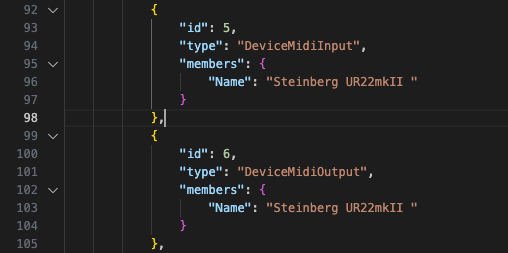
Since that didn’t work, I replaced the empty “Name” fields in “DeviceMidiInput” and “DeviceMidiOutput” with the exact port names for the MIDI device my controller is attached to, and tested again.
I don’t think that helped either, since I still got duplicates when opening existing projects and when creating new projects using my user-created templates.
Here’s how I resolved the issue on my system:
Open Cubase and created a new project using the empty template
Confirm that there were no MIDI remote duplicates
Save the project as “dummy.cpr”
Close Cubase
Open “dummy.cpr”
With “dummy.cpr” open and active–to fix any affected templates–go to New Project and create a new project using a template that’s broken–but DO NOT activate the project when prompted with *Do you want to activate the project?*Choose “No”
Go to the inactive project (make it in focus) and go to File→Save As Template
Overwrite the existing template, or create a new one and delete the old one after confirming that the new one is fixed
To update existing projects do basically the same steps. Keep “dummy.cpr” open and active, open a project but don’t activate it, and use File->Save As. You can just choose the existing project name and overwrite it
Close and re-open Cubase. Confirm that your projects and templates don’t have duplicate MIDI remotes
It’s likely that the steps could be simplified. Steps 1 - 5 could probably be replaced with just opening an empty project from the template.
The auto-detection behavior in projects, when working with ports used by MIDI remotes, seems to be the root cause. I’m not sure it can be fixed permanently without some changes from Steinberg.
I’m having this same issue, but there might be something I’m missing. (trying to fix existing project)
If I save the “dummy” project and then reopen it I get the duplicates. You also mention that in your first bullet point, but in step 4 of your solution you close cubase. Are you not getting the duplicates when you reopen like I am?
Ya, I just tried it again saving into a new folder, because the only thing different I did was save into an existing folder called test, but I got the same result. I’ve also deleted and reloaded the user and midi remote scripts from documents (macOS).
I only get 0 duplicates when opening the “create new” template.
I don’t see “create new” template in the Hub, but if you can save and re-open any project with no duplicates, you should probably be able to just start with step 5.
To clarify, there are no duplicates when creating new, but as soon as a I save and reopen it there are duplicates. It’s only the initial loading of the create new that has no duplicates.
Is the template you’re using to “create new” something you made yourself?
In most cases, you’ll have to use “+ Create Empty…” to successfully create a project that doesn’t have duplicates after you’ve saved and re-opened it. Using a pre-existing template won’t work if there’s already something wrong with it.
Here’s my workaround for Cubase 15, which is based on various tips from this forum.
Point 1: Don’t use “Create Empty”; instead, use templates that you create from a project that doesn’t contain any duplicates. “Create Empty” is buggy for me, too.
Point 2: If you’re not sure whether an old project contains such duplicates, don’t open it under any circumstances, because in the worst case, it will destroy your settings again.
Point 3: NEVER manually delete any duplicates, because a bug in Cubase will almost certainly corrupt the files in the MIDI Remote Documents folder.
Point 4: If you’re unsure about a project or know that it contains duplicates—whether from version 14 or 15—proceed as follows:
First, open a clean test project.
Load the corrupted project, but under no circumstances activate it.
Save the corrupted project under a new name.
When you reopen this newly created project, it should no longer contain any duplicates.
Steinberg could easily fix this bug by adding a feature that removes duplicates without damaging the files in the MIDI Remote folder. With the current feature, the port assignments in the file are deleted, which is why the MR no longer works.
Unfortunately, support doesn’t understand this bug and therefore doesn’t pass it on to the programmers.
So we just have to live with it.
@XLColdJ It’s just the regular “create empty” that is clean of duplicates on first load, not any templates. after saving and reopening is when the duplicates appear.
@Realist Which files are corrupted that need to be deleted before starting fresh and taking these precautions?
user scripts, driver scripts, something within preferences?
It’s important that you set up a working Midi Remote that loads without any issues or duplicate files. Then, save the entire Midi Remote folder—located in the Documents folder—as a backup. That way, if any problems arise, you can always use the backup folder to restore the files.
Could you simplify that for me with clear steps? I don’t understand computer code, I just want to make the bass go wobble wobble.. lol.
If I delete the the midi remote folder, is that something that will rebuild itself on start up? in the forum you linked to, you did a clean install of cubase, is that a required step or was that just you troubleshooting?
You should NOT delete the Midi Remote folder. Please just make a backup of the folder. That way, if anything goes wrong, you’ll still have the working files as a backup.
A clean install is always recommended if something isn’t working properly. For me, it didn’t make any difference. You can skip this reset.