Is there a way to keep the fingering above the notes for cross staff writing? None of the options for cross staff chords in Engraving Options>Fingering seems to affect this:

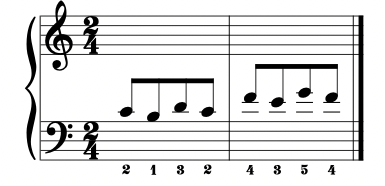
I don’t think there’s an option for this, but I believe the On home staff property is intended to allow you to tell Dorico to position a fingering on the original staff from which the notes came. However, in a bit of experimental prodding I can’t actually achieve this, so I’ll need to consult with my colleagues and come back to you.
In fact I dug a bit deeper, and found that the On home staff property only applies in situations where you have chords with some notes crossed to another staff; in the event that there is only a single note and it is crossed to the other staff, it has no effect. So I don’t think there is a way of achieving what you want by default, John.
Thank you for checking on that, Daniel. I was afraid of that. I would say that most of the time in such situations, the fingering would be placed above the notes, even when there are no lower voices present.
Appearing above the notes is easy enough, of course, but not above the other staff on which the notes do not appear!
Yes, flipping them in Engrave mode is easy enough. However, it seemed odd to me that the fingering shifts position when placed on the lower staff.
If you type an “r” before the finger number, the fingerings will stay above the notes when you move the notes to the staff below.
So, for the situation in your example you would do this when adding fingerings to the notes in the upper staff:
Select the first note then type Shift-F r2 space r1 space r3 space r2 space r4 space r3 space r5 space r4 Enter
Then when you select the notes and use M or alt-M to position them in the lower staff, the fingerings should stay above the notes.
The converse applies with notes in the lower staff which are then moved to the upper staff and you want the fingerings to appear below the notes - you would type “l” before each fingering number.
You can also select the notes and, in Properties > Fingering and Positions > Staff-relative position, select Above or Below.
2 Likes
You’re right, Steven, I’d forgotten that detail. Thanks!
Ah! So one can flip a fingering in the popover after all! Thanks very much, StevenJones01. A real time saver. Much better than switching to Engrave mode and flipping. Couldn’t find that in the documentation.