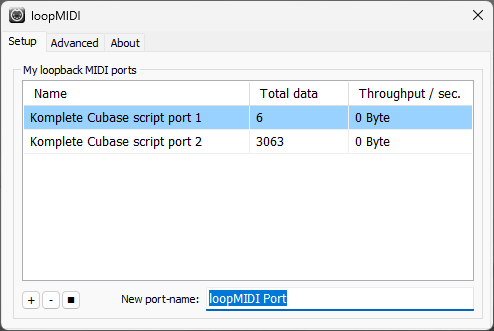
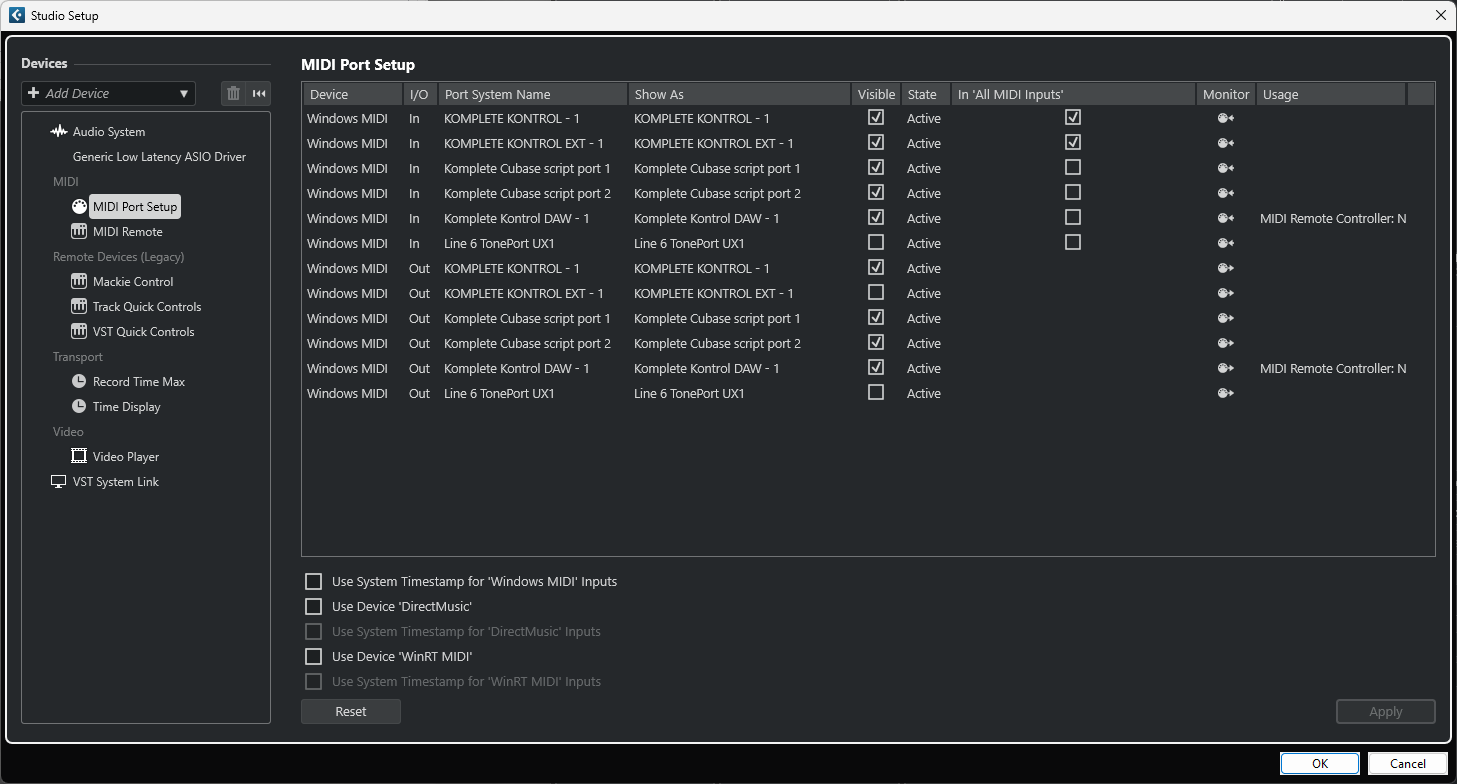
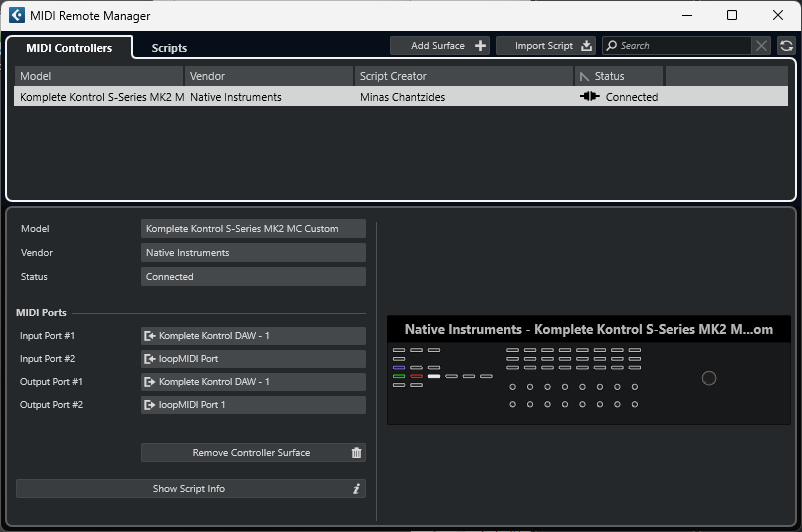
Then I set up the MIDI ports, unchecked “In All MIDI Inputs” from Komplete Kontrol DAW - 1 and the loopMIDI ports. (If I remember correctly I didn’t have checked the EXT - 1 Inputs, but I checked that since it was checked in the picture in the instructions).
But here comes the problem: since I’m going to do the full install, the instructions say that I should choose the KK DAW and have a “loopin” selection, but I don’t have the DAW to choose from the dropdown list nor any “loopin” selection.
The script is already activated in Cubase and uses the DAW ports of the Komplete Kontrol, its stripped down version. If you see your screenshot, for the MIDI Ports, you’ll notice that the DAW ports are already occupied and this is normal, since upon installation of the script, it was automatically recognized by Cubase.
Go to the MIDI Remote tab in the lower zone of the Project window, click on the top-right down arrow and then click on “Disable Controller Script”
Open the loopMIDI application and then rename the virtual ports to the ones suggested in the pdf file. These should be loopMIDI Port and loopMIDI Port 1.
Open the mapOfGeneralSettings.js file, set the strippedDownVersion to 0 and save the file (in case you haven’t done so already)
Open Cubase. Go to Studio→MIDI Remote Manager, click on the Scripts tab , choose the Komplete Kontrol MK2 S-Series MK2 MC Custom and then click on “Enable Controller Script”
Now the MIDI Remote should be automatically recognized
Got it working, many thanks again
I still got several questions regarding the use, like where do those hihat, brass and other instrument names come even on an empty project, plus a lot of other things.
But I will ask them later.
However, where is the “Instructions for importing my own logical
editor presets.pdf” located? I could have a look before asking more.
They are at the root folder of the script [yourDocuments Folder]\Steinberg\Cubase\MIDI Remote\Driver Scripts\Local\Native Instruments\KompleteKontrolMK2Custom
Most probably you are referring to the commands set 3. There we are binding PLEs for renaming the selected track based on the name you see on the screen.
Alright, now some first questions. I must confess, although I’m a bit nerd, I’m feeling quite lost with this tool. I recognise its potential, I just don’t know yet all the functionalities.
But I’m learning slowly. I already noticed some very useful things to use.
Now, when I opened Cubase I noticed that I didn’t have the MIDI surface ready anymore. I had to add one again and enter the ports and loopins. Is this normal? Is there a way that I could have it in use as a default when I open Cubase? Or do I have to add it to every new project?
Sorry for a dumb question, what are PLEs and what do you mean by renaming Could you give an example of how to use the buttons?
Sure. When you are in Command Set 3 page, and you click one of these buttons, the track name should be set to the one you’ve just chosen. In order for this to work, you first have to have the Project Logical Editor (PLE) presets I share with the script, “installed” in your user presets folder.
This is normal only IF you haven’t named the loopMIDI Ports as instructed.
Aha! I knew I was missing something elemental, this time installing the scripts. Now they work as they should, thanks
(and now I’m feeling even more stupid)
I suppose I shouldn’t save an empty project where the surface has been loaded and use it as a template, or should I? Now I have just quit and choose not to save the empty project after adding the surface.
You shouldn’t even have to add it yourself. It should be automatically recognized.
Can you please post a screenshot of your current Studio→Studio Setup→MIDI Port Setup?
I found one mistake: in the Mackie Control settings I had the loopMIDI Ports wrong way. But even correcting that the MIDI surface is still empty when I open an empty Cubase project.
I started to think that are there anything in the script related to Windows localization?
My path to the script folder is written in style (see “Tiedostot” in the path):
C:\Users\jaaba\OneDrive\Tiedostot\Steinberg\Cubase\MIDI Remote\Driver Scripts\Local\Native Instruments\KompleteKontrolMK2Custom
This is not the correct path. The script should be under C:\Users\yourUserName\Documents\Steinberg\Cubase\MIDI Remote\Driver Scripts\Local\Native Instruments\KompleteKontrolMK2Custom .
I found the reason why it was in the OneDrive: I had OneDrive backup on and it had somehow messed up my settings.
I turned backup off,
returned the paths to default,
changed my Windows 11 to English version,
removed the old script and reinstalled it again.
Now it is in C:\Users\jaaba\Documents\Steinberg\Cubase\MIDI Remote\Driver Scripts\Local\Native Instruments\KompleteKontrolMK2Custom
However, I am in the same point as before. If I use the stripped version, the controller is found. But if I close Cubase, set up the strippedDownVersion to 0, I need to add the surface manually.
Well, I guess I have to live with that. Even the stripped version is great, I’m starting to get hang of it now.
This is true. And due to the Nature of Komplete Kontrol, most of the time I’m using its own browsing capabilities instead of the basic Mackie ones. Anyway, concerning the ports, I will PM you.
WOW! Brilliant work, thank you very much! It will take some time for me to go throw all the parameters but it looks very very helpful!
I figueed out that the Buttons for the Noise also toggle the EQ section. F.e. when I BYPASS the Noise gate it also switches the “Type” in the EQ section…is it some kind of bug? I´m using Cubase 12 on Windows 11…no other scripts are implemented
ah, just recognizes that the buttons, which toggle the “Type” for the EQ change the Type whether I´m on the EQ page or not…so even when I´m in the gate, Comp, Tools or Sat or Lim Section these Buttons toggle the “Type” for the EQ aswell…
And another question: By activating your script and renaming the Komplete Kontroll S-Series.dll in the shared components from cubase, I lose the possibility to use KKMK2 in “Plug-In” and “Browser” mode…is there a workaround, where I can use your script AND the KK as a Plugin/Browser?