Hi, and thank you for your kind words!
I don’t have an MK3 nor the sysex messages table for it, so it’s impossible to rebuild the script for it. @skijumptoes might come to the rescue here, since I know he has an MK3 and perhaps has some hints.
This script is so very helpful and works great when I add it in. I was wondering if you might be able to help me have Cubase 14 recognize the full version on every startup. The script doesn’t load up automatically when I first started Cubase. Whenever I load some 3rd party script I have to add my specific port names in cubase to the script to have it recognized on every start up. Do I have to be specific in your script so Cubase expects to look for the loopmidi ports? I’m not sure if I’m being very clear but I’m sure it’s just renaming ports or adding a few extra lines of code. Any thing would be helpful
1 Like
Welcome to this forum!
Can you please post a screenshot of the ports you actually use? (Studio→Studio Setup→MIDI Port Setup)
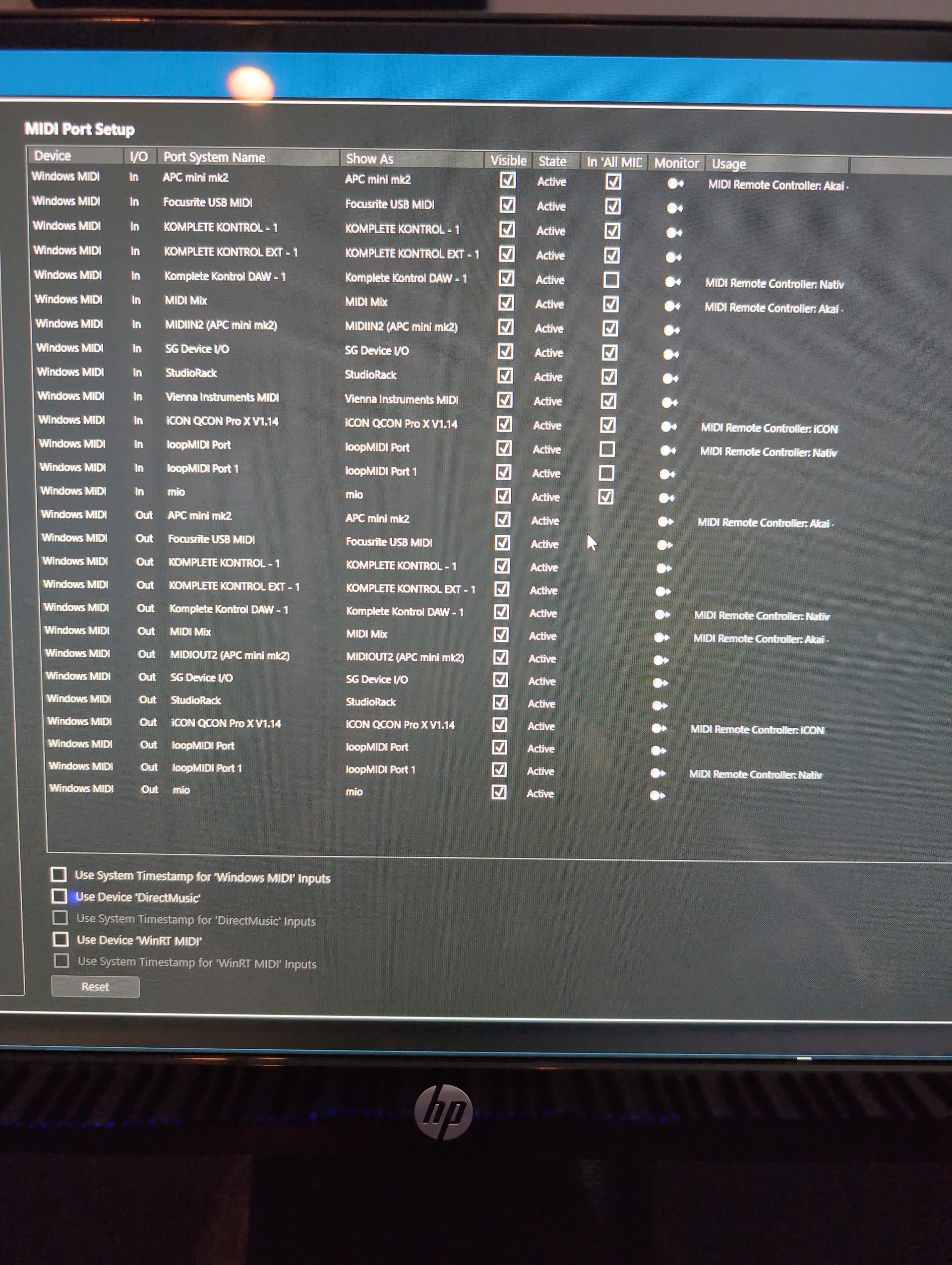
Your ports are fine. What is not fine is my memory. I had forgotten to upload a version which contained a fix for the loop MIDI ports recognition 
Please install this version and let me know if everything works as expected:
Native Instruments_Komplete Kontrol S-Series MK2 MC Custom.midiremote (583.0 KB)
I will immediately try this.
M.C., you fixed something in seconds that I couldn’t figure out in a few months. I thank you tremendously. This has helped my workflow so much.
2 Likes
Glad that it worked for you!
The script in the top post has been updated to cover the correct recognition of loopMIDI Ports. This affects installations of the “full” version of the script, ordinary-stripped down version users, don’t bother to install it, nothing new for you
Big topic, thus I did not find what’s the difference between full and stripped-down script!?!
Hi, this info is included in the Native Instruments Komplete Kontrol MK2 Custom Script.pdf file at the very top post.

Just to be clear, it’s not about the browsing from inside Komplete Kontrol VST, but a generic one available inside Cubase (using a fake Mackie device).
1 Like
Thanks, @m.c
1 Like
Nice! Would this script work on a Mac by any chance?
Certainly, it works both on Win and Mac!
Ok. Nice! Thanks!
I’m going to get my hands dirty and see If I can get this going after a project.
Can’t do it right now.
1 Like
Woah! That thing is INSANE! (and intense)
Very cool once you learn the lay of the land. (PDF helped a ton)
However, there’s something funky happening with the newly allocated button for transport play (loop). The new “play” triggers on the release. Could be the nature of the button itself, but what do I know? LOL
Anyway, thanks for one heck of a fun remote script. Great job! 
1 Like
Thank you for your kind words!
I need to explain this a bit. The Play button has no release at all, it just gets triggered upon press. However, I DO set the script to wait for some milliseconds, in case, you press it again, i.e. a double press. I have assigned different functions to some buttons, when we double press them.
In the case of “PLAY”, the double press is assigned to toggle Punch-In. This is something I use a lot, and I needed in my transport keys. See the below screenshot from the MIDI Remote where I describe various functions upon double pressing some buttons:

By the way, you can deactivate double-presses for buttons that you don’t need. This is doable by editing the mapOfGeneralSettings.js file in the script’s folder. Let me know if you want to do so
2 Likes
Hi,
this script looks so great, that I’d like to install it on my upgraded PC, but the Import Script button is greyed out.

What should I do? I moved from Win 10 to Win 11 and did a clean install, so there’s not much apps yet installed.
Win 11
Cubase 13 Pro
Native Access
Komplete Kontrol app
My keyboard is S61 MK2.
What should I do to get the script installed?

In order for it (and the Add Surface button) to be enabled, you first have to have a project open. I guess you’ve opened the MIDI Remote Manager from the Hub window, without any project open.
1 Like
That was it, many thanks!