No, when importing it goes to new tracks.
If you don’t mind using a Multi-Timbral instrument as a Rack Instrument, there are at least two methods that can make it easier/faster to import….
Method 1
Before you import a MIDI file:
In Edit/Preferences… set the Destination pop up to HALion Sonic multi-timbral. Click Apply and OK.
Import the MIDI file, and now you can change the port/plugin endpoint for all of the tracks in one smooth move.
You could also give your import a play through at this point with the Sonic Player…as it should start up in a special GM mode. Don’t underestimate how good this thing can sound in GM Mode! It’s packed with Effect Busses and effects to go in them, and that’s the key to making it sound fat/rich/modern. It’s also possible remap new/different instruments to replace the default ones. Changing the drum kit in Sonic GM mode can be a bit of a pain (Change the Program Number to 129 and rate the kit you want with the highest number of stars, then manually drag the preferred kit onto channel 10).
For this example I’ll be importing a General MIDI SMF that I grabbed here:
Styx Sing For The Day midi download - free midi download | Midis101.com
I use File/Import/MIDI File… and tell it not to open a new project since I want to just bring it into an existing open project.
The batch change move to a new instrument/plugin works like this…
Scroll down to the bottom of the project where the tracks were imported and select them all. In Project View, Click the Track Leader of the first track so it highlights, hold shift and click the last track that you’ve just imported, or hold ctrl and click them one by one. In the left column of the Project Window all of the tracks should be highlighted.
In the example above I’m skipping the first imported track since it is just sysex stuff that my target instrument ignores.
I’d like to test it with a 3rd party plugin. Since I don’t have a proper plugin right now other than HALion (Full HALion 7 is usually my goto when working with SMF files) and Sonic 7 that handles the GM protocols for calling up instruments via PC events, I’ll try pointing it to a special Bidule instance where I’ve built a setup that can merge and force 16 instances of East West Opus with the Goliath Library to dial up VST3presets for the proper instruments when the GM program changes come.
Bidule > Opus X 16 Instances (Screenshot)
Fewer and fewer plugins these days can respond to Program Changes and change their sounds.
While Opus can be multi-timbral and will work directly in Cubase if you manually build a multi-channel instance and dial up the instruments, there’s no way to remotely call up or change sounds in it Via PC as per the General MIDI protocols.
I get around this by hosting 16 individual instances of Opus in bidule, and teaching bidule to intercept PC events and use them to call up the right VSTpresets for each Opus instance.
To do this instrument change, I go to the track inspector and make sure the Routing section is visible.
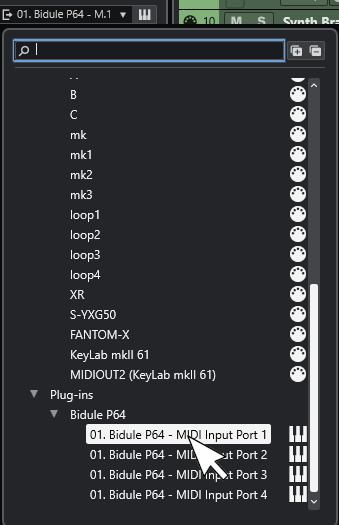
I’ll hold the alt-shift keys (I’m on Windows, if on a Mac hover over the little arrow and it’ll tell you the key combo you need) and click to change the target instrument/port.
And select my target Plugin or MIDI port.
While I’ve got my tracks selected I’ll go ahead and right click one so I can move them to a folder together.
If I go through and click the tracks one by one, I should find that all of these tracks point to Bidule instead of Sonic. I can rename the new folder as I like, and move it to where I want it in my overall Project order.
I can now ditch the HALion Sonic instance in the Instrument Rack.
Success…my home-made GM Player has managed to dial up the right instruments in the Opus instances and it’s sounding pretty good for a first listen.
Method 2
In Edit/Preferences… set the Destination pop up to MIDI Tracks. Click Apply and OK.
Set up the Instrument you want the imported SMF to use and point a MIDI track to it.
The steps to change a batch of tracks in one smooth move is the same as outlined in Method 1 above. (Select Tracks, hold shift-alt and click in the inspector to change the instrument end point).
Note: Cubase will use whatever instrument endpoint or MIDI port you last assigned as the end point to a MIDI track (or group of them using the shift-alt-click method). I think if you start with totally fresh Cubase instance and project and no Custom User Template, it’ll either use Sonic tracks, or go onto MIDI tracks that are simply “Not Connected”. If you have not shut down Cubase, or don’t use a custom Template that forces something different, it’ll always use whatever the last thing was that you connected a MIDI Track with.
If you have a favorite instrument that you’d like to more or less become the default when importing SMF files, then you’ll need to set up a Template for that which has the instrument in the rack all ready to go.
Now here’s the bug I found and reported several times. It’s been around since Cubase 12, and has to do with Physical MIDI devices. I say ‘bug’, as Steinberg has addressed and improved it to some degree. At one point in Cubase history it might not connect at all, or garble the connection so it doesn’t play back properly. Now it works in Cubase 15 (and maybe it was fixed in the older versions too), but with the inconvenience of forcing all the MIDI output channels to ANY. So, if you move things from a VSTi plugin to a physical MIDI port or vice verse, Do a “MIDI/Freeze MIDI Modifiers” operation first! At least this way it’ll send to the channels expected, and you can gradually change them to whatever channels you like at your convivence if desired.
I’ll now try moving it to an Old School external MIDI Instrument that predates having any kind of VST Plugin interface for it.
First I Tap F4 and set up an External Instrument. I have a Roland Fantom XR plugged in to my audio interface, inputs 9 & 10.
I’ll load it in the ‘rack’.
Select all the MIDI tracks I want to send here and use the same alt-ctrl-click trick to mass change the tracks to use the Fantom (Sidenote: I’d already made MIDI Instrument profiles for the Fantom). (This time I want the GS Sysex Track too).
And now I see that Cubase has properly connected the tracks to the Fantom, but it has also forced all the tracks to channel ANY. In this case it’s fine, as the tracks are flat and it’ll play back properly (to the original channels hard-set in the SMF). But if I’d rerouted any of those tracks with Cubase before doing this and failed to “Freeze MIDI Modifiers” it could change any routing plans I might make in annoying/confusing ways.