So interesting. Really. 
Another option is MetaGrid Pro. It is very powerful and more flexible than Stream Deck. The downside is:
- Subscription (or a rather expensive lifetime purchase).
- The included Dorico demo grid does not work on Windows, but can be made to work. All in all, it needs a lot of work setting up a decent profile, since there is no premade, extensive profile like Notation Express.
- No Android, if that is important. Only iPad and Mac (there is a server for both Windows and Mac).
yep I like meta grid too, but for now I can’t use it because it doesn’t work on an iPhone, touch portal does.
Another totally free tool that I think more Dorico users should consider but never hear anyone talk about here is Open Stage Control. http://openstagecontrol.ammd.net
It serves up the interface via web, so you can use any web device you want to control whatever you’re going to control. But as I understand it, its a little more involved to setup, but has considerable capability… Not sure if it can do icons yet or not for buttons too. But free and basically use any web capable device to control Dorico.
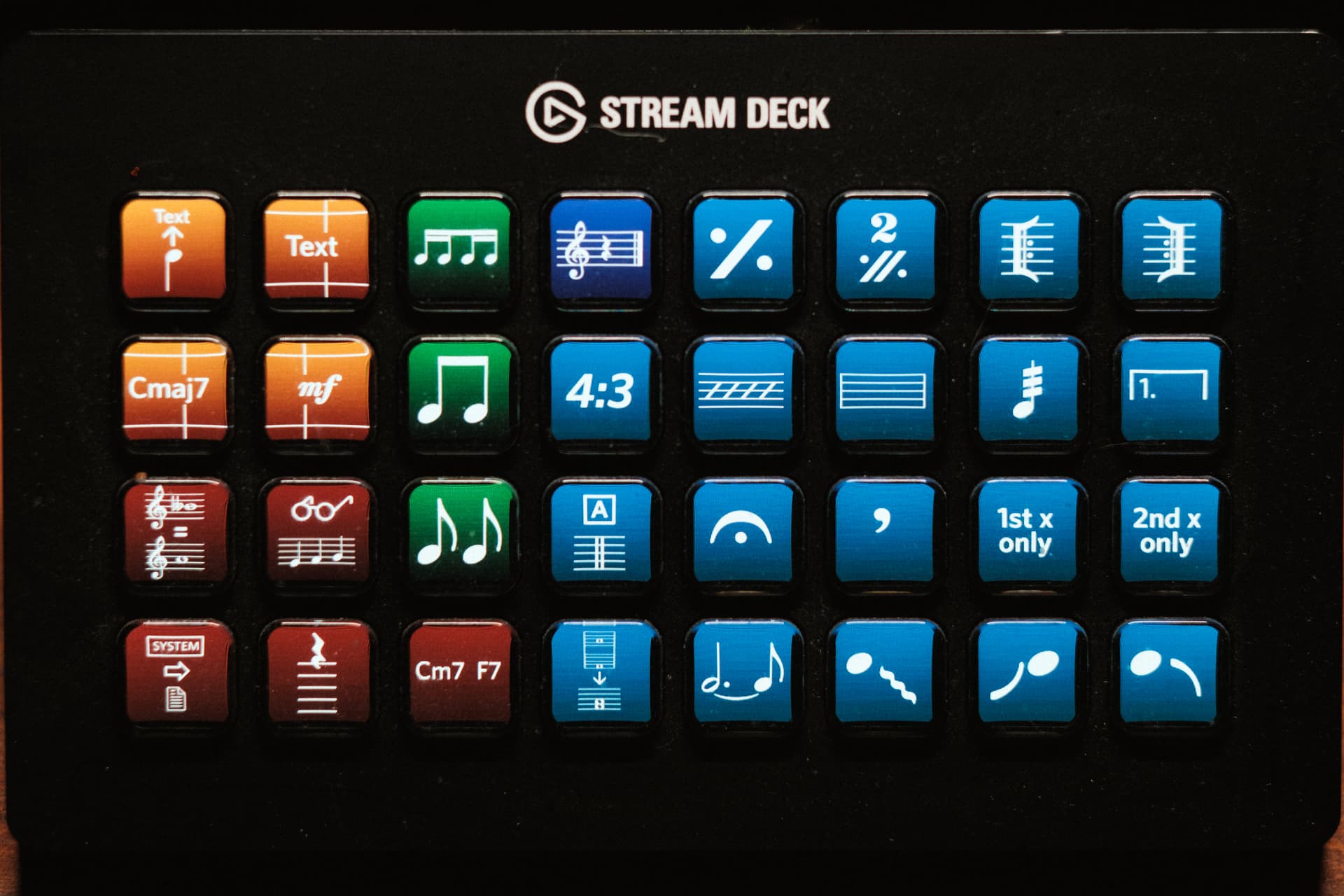
Hi Fred, Your Stream deck looks great. I also use a stream deck with Keyboard Maestro and made many shortcuts and pages on them. Can you share with us how you made the action behind the 2 green buttons on the left (showing 2 eight notes beamed and unbeamed) A picture will be enough like you showed us the “copy breaks” Multi action. Many thanks


Thanks Fred. Sounds so simple when you know it. I’m using Keyboard Maestro which makes it even easier to create a button for Stream Deck without the hassle of making a short cut
I now have the SD and the Notation Express profile. As a newbie with no experience, I have no idea how to create my own new shortcut buttons. 1) Is there a way to get and import buttons that others have made? 2) is there a step-by-step “tutorial for dummies” on how to create them?
This YT got me going
Look for: Elgato Stream Deck Complete Setup Tutorial

Icons for buttons
Some music notation icons posted here. There was another post somewhere with more icons somewhere (try a search).
And Elgato have their own marketplace for more depending on what you want to use, I often just use text and a background gradient most of the time for most of mine but have downloaded (many are free) a few sets to choose from.
Hi Wing
A complete beginner on this - and too old to invest the time to learn! So, sorry, could you take me step-by-step (baby talk is helpful!) on how to do the above and get a suitable icon to flag it?
Thanks in anticipation Pete
+1. @wing, I’m curious about how you set that one up too. I can see how you could set the Layout Options / Staff Visibility settings with a macro, but not how to have an Instrument Filter set to only show staves that contain music. I’d appreciate a tip with that one too!
The link didn’t work for me but the title you provided allowed me to locate the tutorial on YouTube and I’m glad I did. It is 2.5 hours long but the instructor is excellent and I left with a solid foundation in using Stream Deck not only for Dorico but for other things as well. Highly recommended.
@seapaddler @fredgunn Sure thing, it was pretty straightforward actually, it only involves three steps in Streamdeck. The short concept is that I’m selecting everything, filtering it only to notes, and then asking Dorico to create a preset from that selection (i.e., only music which exists, thus ignoring empty staves).
You do have to create a few custom key commands first on the Dorico side to get it to work. I chose longer key commands to ensure there weren’t any conflicts but you can choose whatever you want.
Steps
- First create a key command for “filter notes and chords” if you don’t have one already:

- Next create a key command for this vaguely named “Create Preset from Selection”:

I say vague because it’s not clear by the title that it’s related to instrument filters. It’s not even under the instrument filter options, it’s under “edit,” I think I discovered it entirely on accident. This is the same as the plus sign under the instrument filter bar which says “New Instrument Filter From Selection” Anyway I digress…
- In Streamdeck, with a blank “button” selected, drag “Multi Action” from the right-hand panel over to create a macro from one button. Double click to enter this action which will present you with a blank area to add steps. Next Drag over three “hotkeys” from the right-hand panel. Now you will edit these hotkeys with the key commands from Dorico. I also personally like to label them manually so I know what they do later on.
The steps in order would be:
- Select Everything - [cmd (or ctrl) + A] - this will select everything in your flow top to bottom, including text. Obviously we don’t want everything for our instrument filter, so next we have to:
- Filter Notes & Chords [your shortcut here] - this will now reduce your selection to only notes; or in other words, it will unselect any staves which doesn’t have music on it.*
- Create Preset from Selection [your shortcut here] - and then this will take that selection and create a new instrument filter from that!
When finished, your Macro Action should look something like this:

*caveat - with the filter notes & chords, note this will only work when your selection status is set to “select only”, as seen in this right click menu under Filter:

Because you want to tell it to filter only notes, not the opposite. I personally have my filter set to “select only” 95% of the time for most tasks, at least by default, but should you ever switch over to “deselect only” this macro will not work, just FYI.
If you DO toggle between select and deselect only filtering often, I think you could in theory add the key command for “Select Only” in your Streamdeck multi-action, as the second step before you filter, to ensure it is set to that first before continuing. I just haven’t bothered.
Finally, regarding a nice icon, I’ve honestly been a bit lazy about it, and just left it with the boring Streamdeck default text setting which I labelled “FILTER ALL”. Not sexy looking but I know where to find it. But there’s lots of simple tutorials out there, I think you just make a basic square graphic that is something like 72x72 pixels, add whatever you want, save and import that as a graphic (png or jpg I think). Also Elvato has an online Key Creator where you can make a graphic using a library of icons. Most of them are pretty generic and not music-related apart from a few basic music notes or whatever. One of these days I’ll get around to making a snazzy icon… 
Super cool, @wing — thanks!
 )
)Haha! It seemed like a reasonable way to depict “Show only staves with music.” I was trying to keep the icons as clear as possible so I didn’t need to use text. I actually reshuffled them a bit after posting last night as I thought of a more logical way to group a few of them, but they are color coded by type or mode of use too. The red buttons on my setup all start with some sort of Filter command.
I don’t think I have the technical expertise to do that on my own. Is it possible to send the already created SD profile that could easily be imported? Or to purchase them?