Hi @konradh this is a relatively deep field, especially with the many articulations that VSL libraries have. Just to point you in the right direction, especially for VSL libraries, (beside the other helpful comments and suggestions):
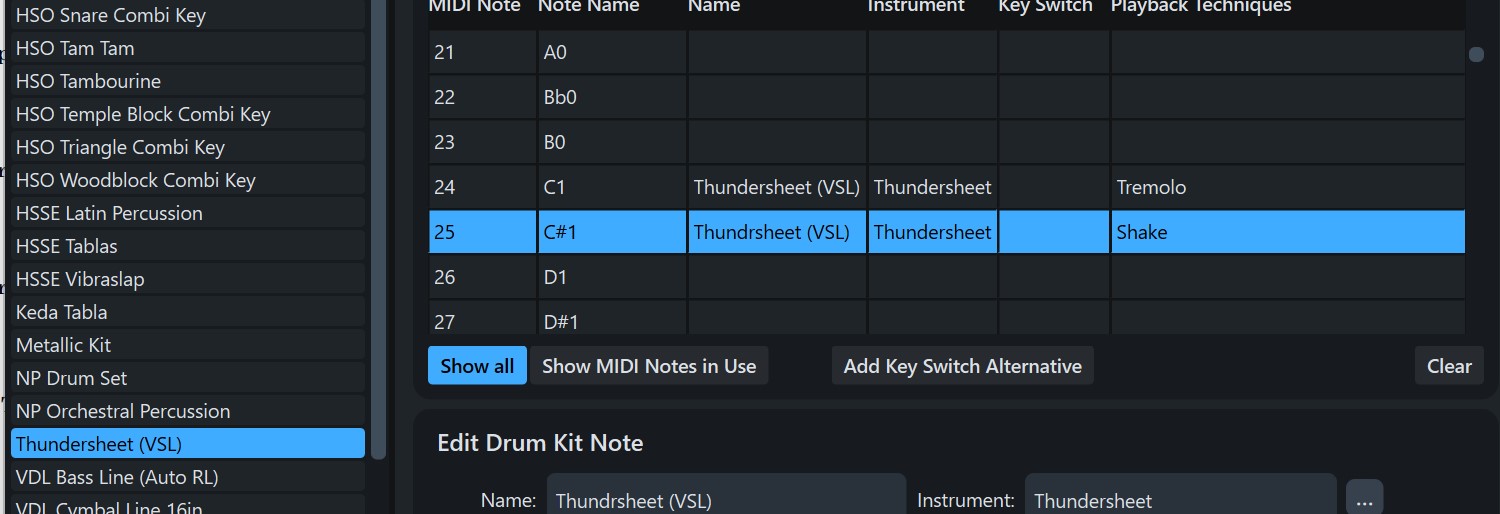
in the Synchron Player you can see which articulations are assigned to which midi notes, clicking on the little keyboard icon in the Synchron Player, to open the Key info Panel, where you find vertically specified the midi notes corresponding to the various articulations. In this example I opened SYNCHRONized Special Editions/Orchestral Percussion, and you see that the Thundersheet articulations start form C1 (Thundersheet Tremolo) and then C#1 (Thundersheet Shake forte)…etc…and so on till B1. (as seen in nr. 4 and 5)
You need to insert this informations in a newly created Percussion Map, where you define the midi notes and the corresponding name of articulations and playing techniques…(I inserted the first two “sounds”, tremolo and shake, in my example)
Don’t forget to click Apply, before you click on OK!
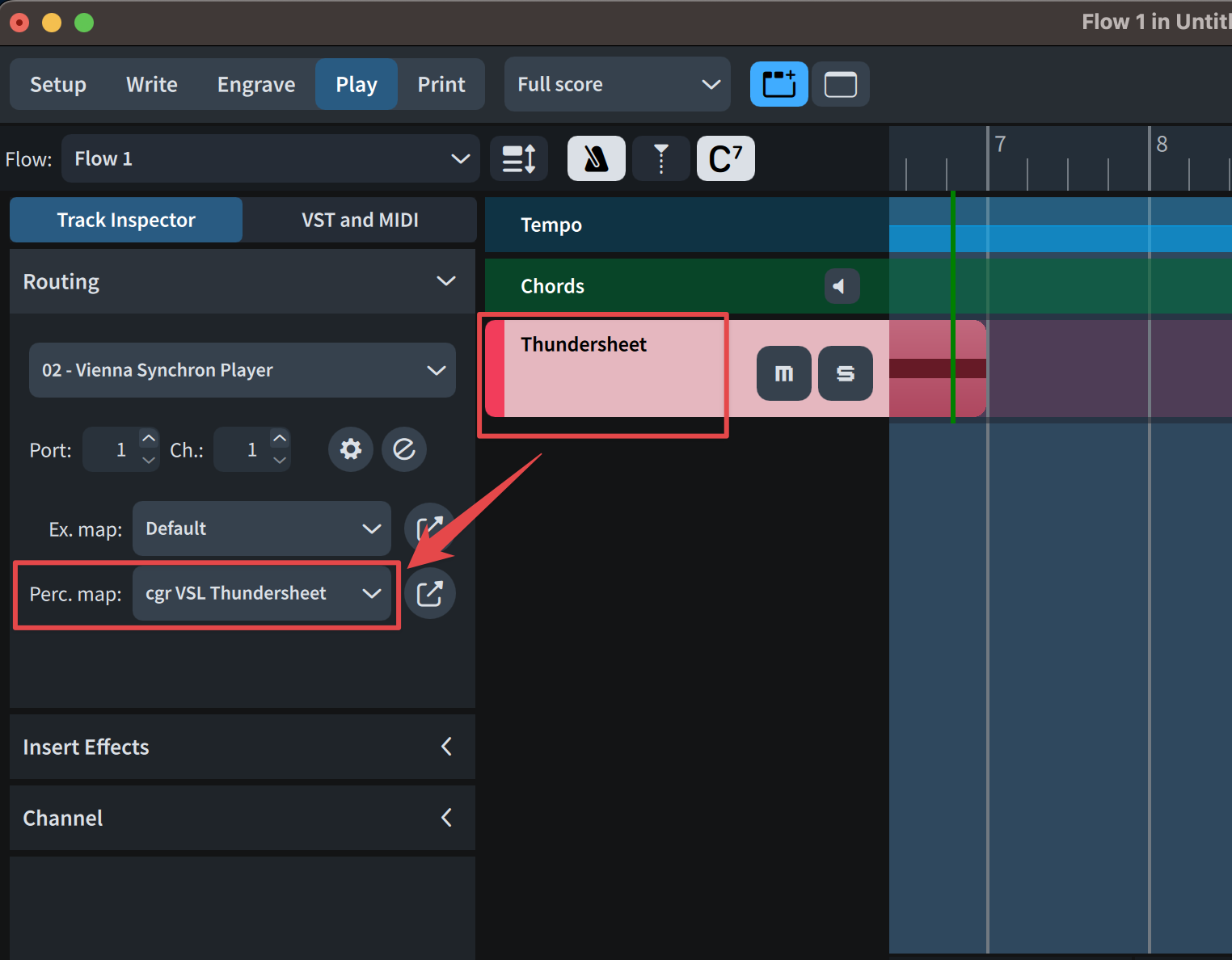
Then you need to assign this created percussion map to the thundersheet track:
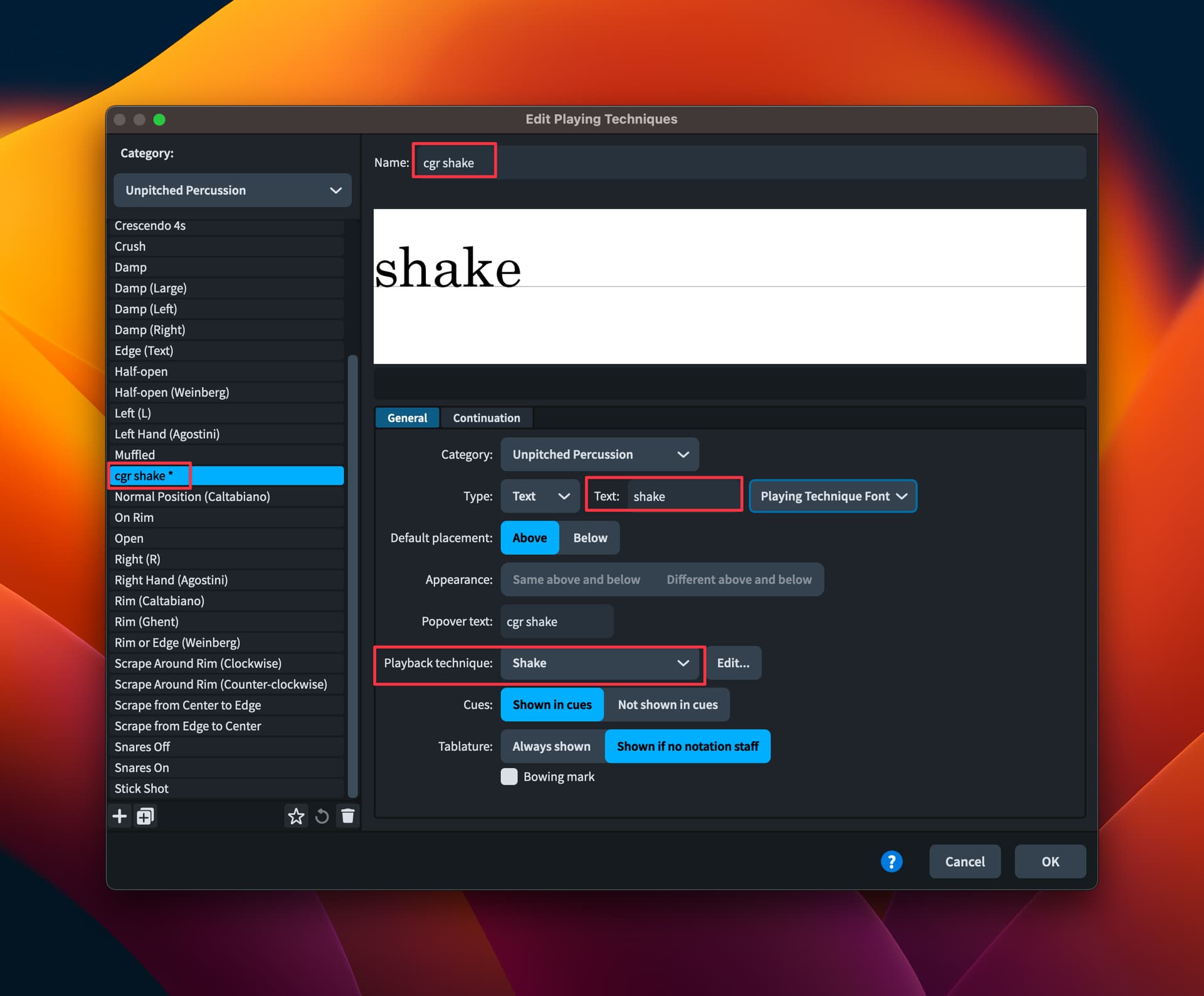
You can then create or edit the needed playing technique/s corresponding to the “sound” of the library, and it’s/their connection to the respective playback technique/s:
alternative/optional step
Alternatively you can specify (editing the instrument playing techniques) the needed connections with the articulations and tremolos (using the + at the bottom left of the editor), or you can create separate noteheads that correspond to different playing techniques (using the + on the upper left of the editor)
(I assigned in the below example , the first two sounds of the vsl library):
At the end of this process, you can then write your thunder sheet on one line, and using different playing techniques, (or repetition markings or different noteheads, if you used the alternative method above), you can hear the different sounds, that are redirected automatically by the percussion map to the correct midi notes:
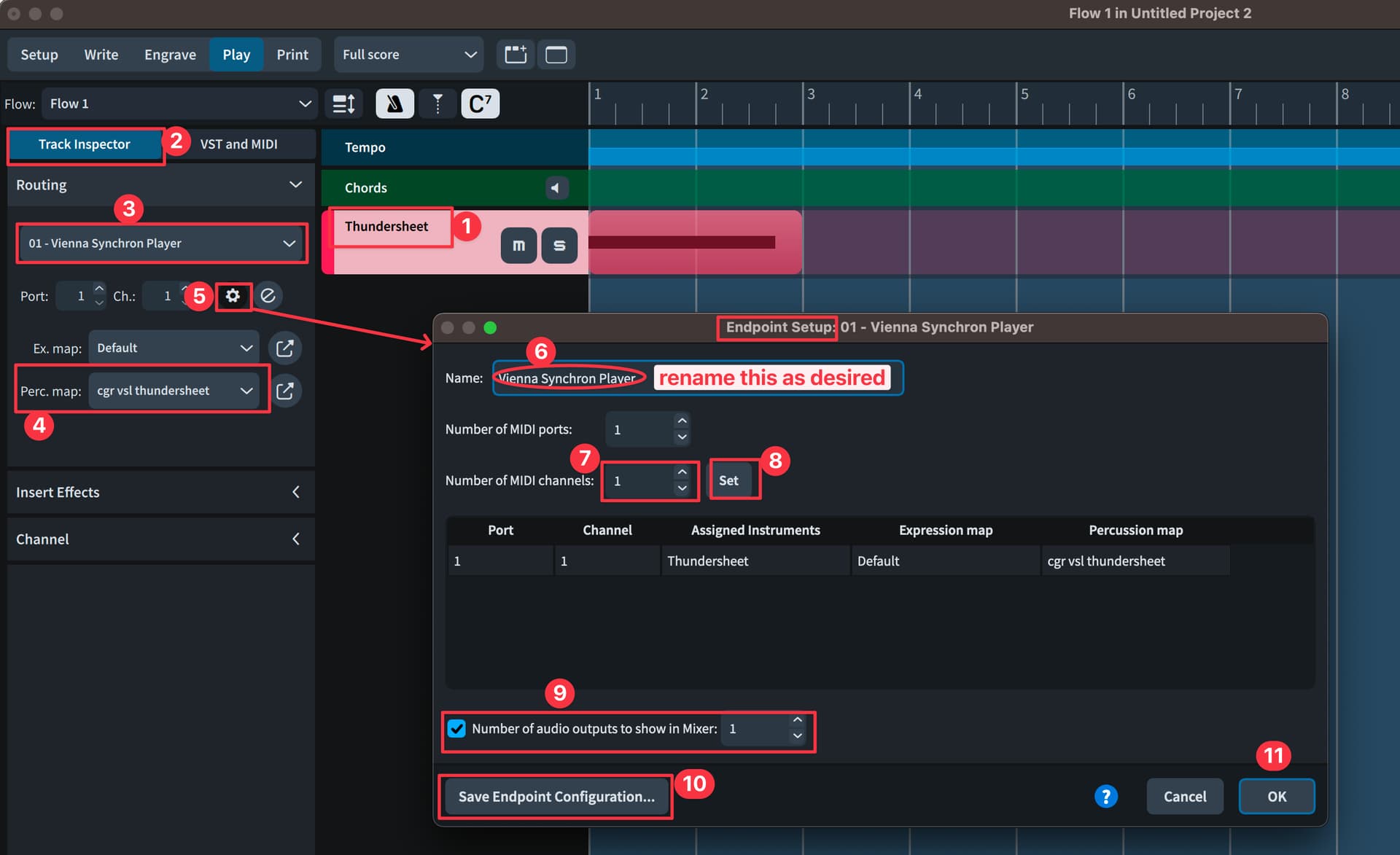
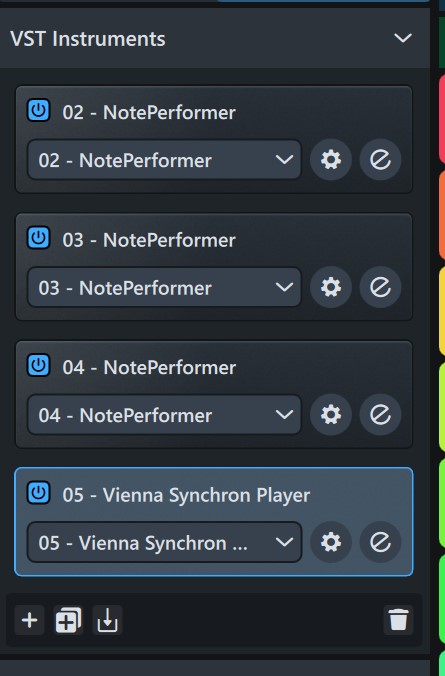
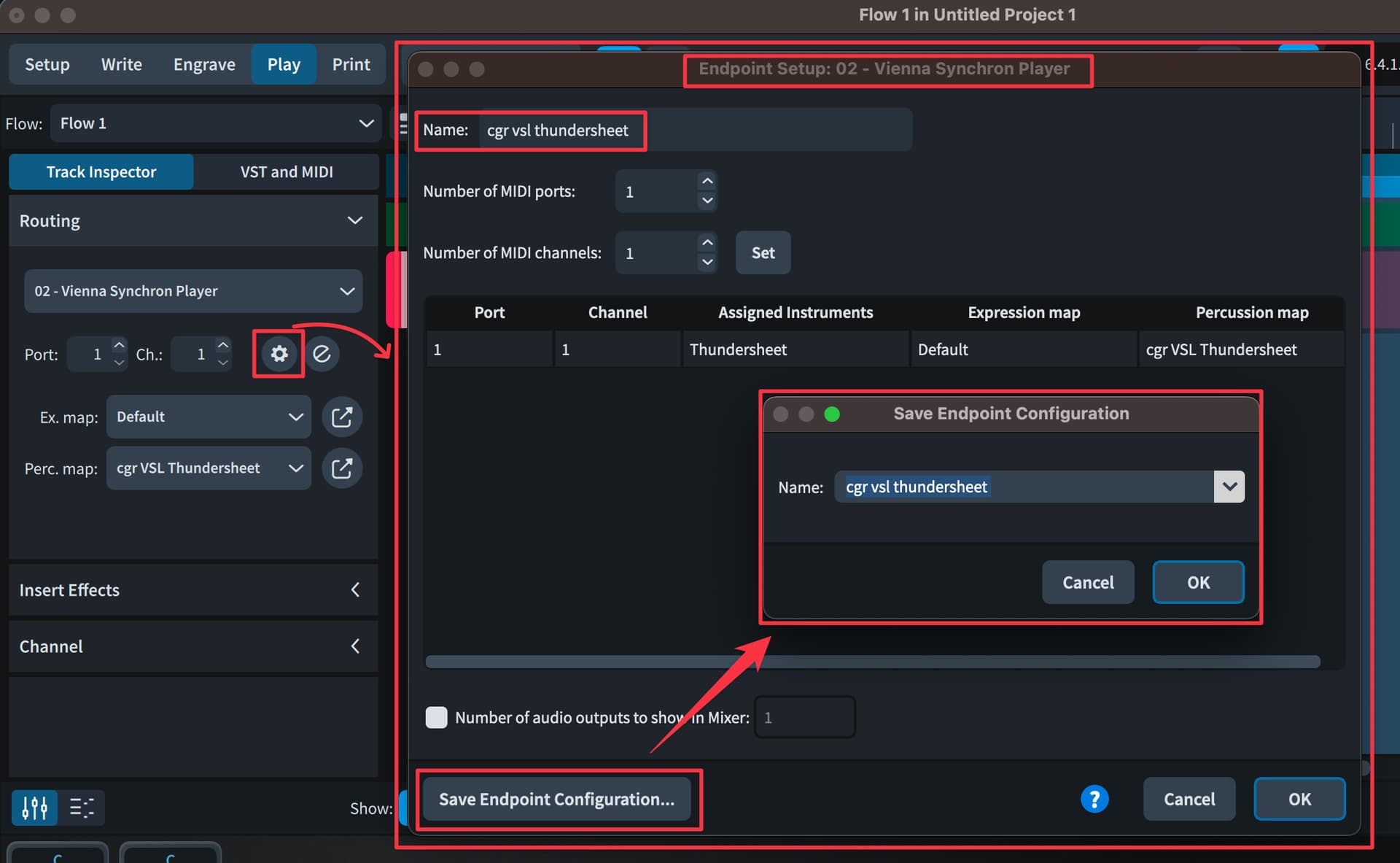
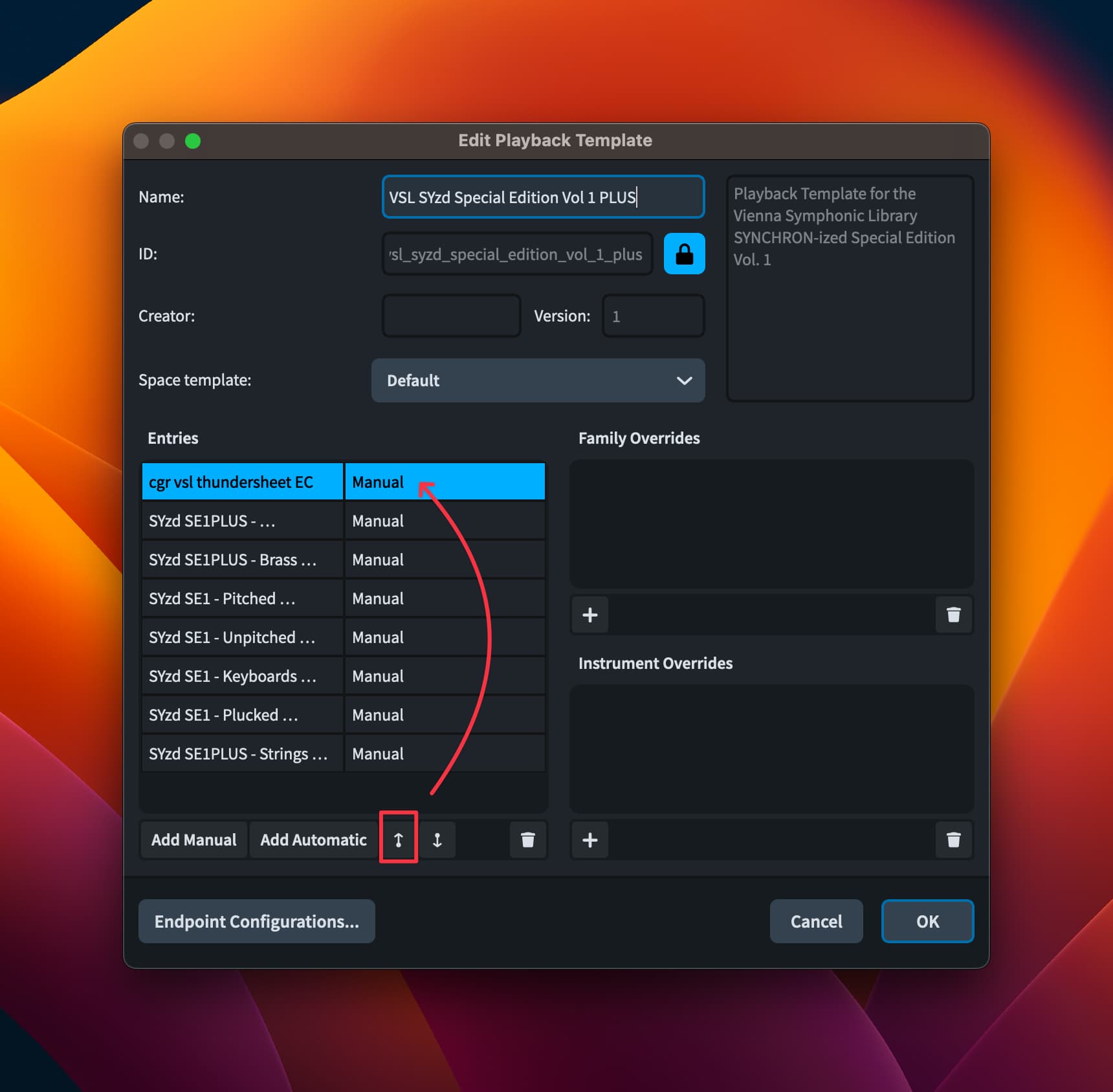
You can also save the endpoint configuration (clicking on the gear icon *), and add it to a personalised playback template, editing one, and clicking on Add Manual, to add your saved endpoint configuration **, putting then it at the first place of the list ***
(and the reapplying your playback template):
(*)
(**)
(***)
It is a fact that this is a complex field, but with very powerful possibilities. I hope I did not confuse you more. (and If I made some mistakes in my workflow, sorry…I hope someone corrects me)
I suggest warmly this video for further explanations (some user interface windows changed with the more actual versions of Dorico, but the concepts remain basically the same…):








 :
: