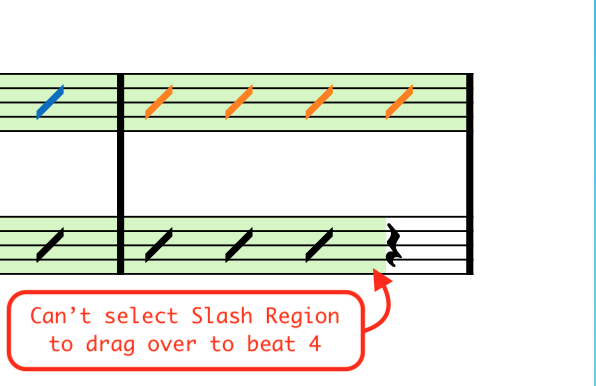
In the attached project at measure 44 in the bass clef - I need to adjust the Slash Region to cover beat four.
For a brief moment I was able to select the top Slash Region in measure 44 and pull it by the handle to cover beat four - but immediately after this the Slash Region became un-selectable for me. I don’t know why.
I’ve exited out of Dorico and re-opened but this did help.
Any suggestions?
song_for_bilbao.dorico (885.7 KB)
Shift + Option + Right (or Left) arrow keys will move the green colored slash region.
The handles were never to be seen again (even when zooming in real close). ??
I can’t reproduce this.
You should try updating to the latest version of Dorico and see if it still happens.
Update Dorico? That would likely send me to the hospital.
I know you would have saved the project you attached. Did you happen to open it afterwards to see if the problem still existed, or did you just save and attach?
Yes, I rebooted Dorico - multiple times, but the green rectangles are un-selectable as near as I can tell. The handles only made one appearance immediately after placing the region - and were never seen again. I’ve duplicated this in a separate project too.
The expectation is: In Write mode click the green rectangle with the cursor - then the handles appear. Is that a valid assumption?
FYI - I am using Dorico Version 5.1.70.2200 (Nov 18 2024). I saw the banner when starting Dorico alerting me that there’s a newer free version. I plan to update soon - but only after I have a few shots of whiskey. 
No. You need to select a slash to be able to see the handles.
Selecting the green parts in a slash region isn’t specifically selecting the slash region. Rather, it is selecting everything in the bar (which in your case happens to be a slash region). This would be the same as clicking in any empty space in a bar - the whole bar would be selected.
Case in point: using the material in your initial screenshot, select the green part that your red arrow is pointing to. The rest will also be selected.
1 Like