I added a title page in the score. Is there a way to simply copy this page to the parts without having to do it separately for each part?

No, I’m afraid you’ll have to adjust each individual part to use this title page first, and then have a ‘First’ page.
Oh, and if you created a Title Page for the score (it always works best as a template), then, unfortunately, you’ll have to create a Title Page template also for the Part Layout(s). The good news is: if you create a Title Page template there, you can use it in all parts (by assigning that template to opening pages in any part layout).
Hi @StephenBurch, you need to recreate the Page template for the title for the Parts.
Choose a Part layout from the Toolbar:

and then in Engrave Mode, you will see that the page template set will switch to Default Part:

so repeat the procedure that you did for the Full Score Title template (create new Page template and edit it)[Edit: see correction below]. You only need to create one parts title template, and then assign it to each part (right click on the 1st Page Icon on the upper left and choose Insert Page Template Change, then select the next Part Layout from the Tool bar and repeat the last step):

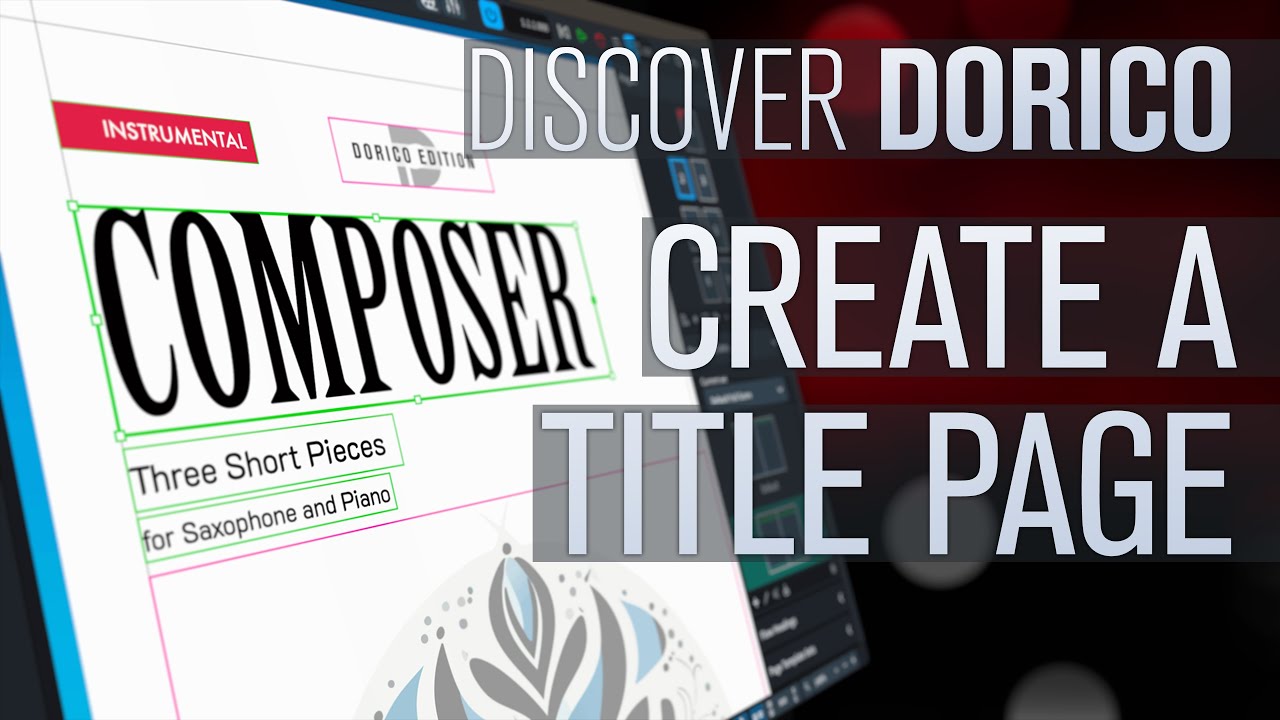
More infos in this Video:
[@PjotrB was faster  ]
]
Thanks!
Sorry @StephenBurch, a clarification/correction for what I wrote above
Actually you can import the Title Page Template that you created for the Score, to be used (with the appropriate customisations) for the Parts Title. You find this in the video I mentioned starting from 35:08 :
(the video now should start at the mentioned place):
Let’s go back to creating the title page. I followed the instructions in the video at around 14:00 and following, made a title page, and imported the title, composer, and arranger. Next I chose page one and clicked on Insert Page Template Change, then chose Title in the box. When I clicked OK, no title page showed up. I’ve attached two screenshots, but for some reason the lower screenshot is the first one, and the upper screenshot is the second one.


I think that’s because you have a page override on page 1 (the red triangle on the first of the miniature pages up to the right). Delete the override and it should work.
OK, what is an “override” (how did I put one there in the first place), and how do I delete it?
The override triangle appears when you have made a manual change on the page, like adding/adjusting a frame for instance. Right click the page in the pages panel and choose remove override.
On a side note, the red system fullness indicators on the right end of each system are indicating that those systems are overly full.
Try reducing the note spacing for the layout a bit in Layout Options, and you’ll find that the spacing becomes more relaxed automatically.
Eg reduce the gap for quarter notes from its default value of 4, to c 3.5 spaces.
So . . . the fact that I made a change (adding the arranger) to the first page means that I can’t add a title page? I’m confused about the logic of that, but I guess I just have to accept it. Seems strange though.
The logic is that if you have made a manual change to a page, that is an override of the template, and Dorico assumes you want to keep it like that. No template changes will apply to the manually changed page. But actually in this case I would have expected it possible to add an extra page with the title template even if your first “normal” page has been altered.


If you can share the project (or just a part of it) it will be easier to guide you.

Happy to do that. This is an arrangement that my trio plays when we perform at the Ronald Reagan Library here in SoCal. I have done all of the arrangements in Finale over the years, so this is imported as an xml from Finale, so that I can do a deep dive into learning Dorico. (I don’t know why the uploaded file doesn’t have the “n” at the end of “Washington”.)
Washingto Post March.dorico (1.7 MB)
After you remove the page overrides, right-click the first page and select insert page template change. Change the current page to use First.
Jesper
Washingto Post March.dorico (1.7 MB)
Thank you!
The first thing you should do after removing the override is to go to layout options and check this:

You have that one set to never.
Then, you can edit the “First” page template to include the arranger. Double click “first” here:

and add the arranger field as you previously did on your first page, but use this {@projectarrangerprojectarranger@} instead of typing it in.
Then you can add the page template change as described above to have your title page.
If you want the page number to show also on the “First” page, you will have to add text frame to the First template as well.
Done - screenshot attached showing the “correct” first page. Now back to my original question about adding the title page - I’m going to look at that video again and see if I can get it done. If it still doesn’t work, I’ll come back here. Actually, I’ll also come back here if I can get it done, just to say thanks once again.
